Microsoft introduced Cloud Rebuild since Windows 11 Insider Experimental Preview Build 26300.8772, giving users a new way to reinstall Windows 11 without a USB flash drive. Unlike traditional recovery methods, it can download the Windows image and required device drivers through Windows Update.
This makes a clean Windows 11 installation more convenient, especially when Windows cannot boot normally or you do not have installation media available. Let’s start exploring more details.
Quick answer: What is Cloud Rebuild
Cloud Rebuild is a Windows 11 recovery feature that performs full reinstallation using files downloaded from Windows Update. It can restore a PC to a clean state without a USB drive, custom installation image, or a working Windows installation.
What You Need Before Using Cloud Rebuild
Cloud Rebuild is currently a Windows 11 Preview feature, so it is not available on every Windows 11 PC. Before starting, make sure your system meets the requirements and that WinRE can access the internet.
- Supported Preview build: Cloud Rebuild was introduced in Windows 11 Insider Experimental Preview Build 26300.8772 and is currently a preview feature.
- Windows Recovery Environment: WinRE must be enabled and working. Open Command Prompt as administrator and run: reagentc /info, thenCheck that Windows RE status is set to Enabled.
- Internet connection: Cloud Rebuild needs internet access from WinRE because it downloads the Windows image and device drivers from Windows Update.
- Supported network: You can use Ethernet or a supported Wi-Fi connection in WinRE.
- Windows 11 hardware requirements: The PC must meet the required Windows 11 hardware specifications.
- Power connection: Keep the computer connected to power throughout the rebuild.
How to Reinstall Windows 11 Without a USB Using Cloud Rebuild
If you want to reinstall Windows 11 without creating a bootable USB, Cloud Rebuild provides a direct recovery method through WinRE. Here are detailed steps:
Step 1. Press Windows + I keys to open Settings.
Step 2. Go to System > Recovery.
Step 3. Under Advanced startup, click Restart now.
Tip: You can also enter WinRE by pressing and holding Shift key while clicking on Restart.
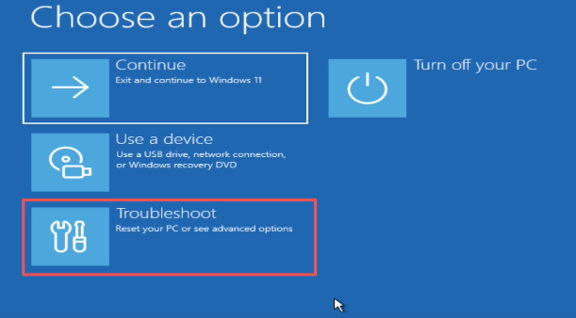
Step 4. After the PC restarts, select Troubleshoot.
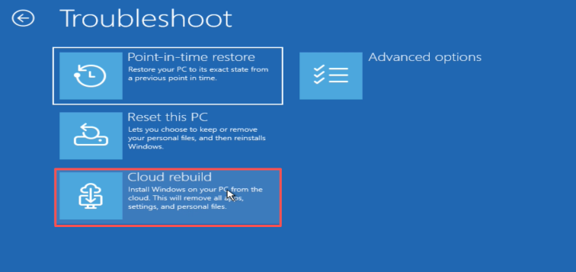
Step 5. Select Cloud rebuild.
Step 6. Cloud Rebuild attempts to connect to the network automatically. If your PC uses Ethernet, the connection should complete automatically.

Step 7. Review the Windows build, edition, and language shown on the screen, then hit Continue. Make sure they match the version you want to install before continuing.
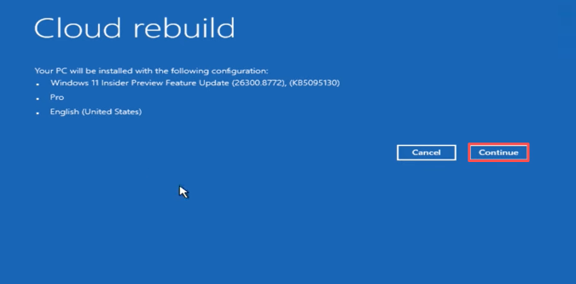
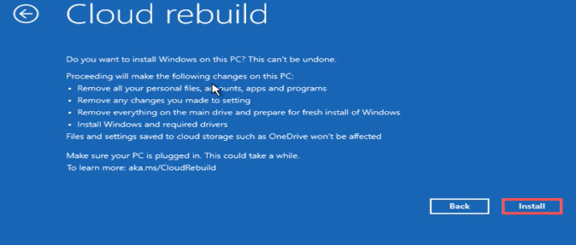
Step 8. Review the warning about data loss and click Install to start the rebuild. Cloud Rebuild removes your local files, apps, accounts, and settings, so make sure important data is backed up first.
Step 9. When the rebuild finishes, your PC will restart and enter the Windows out-of-box experience (OOBE). Follow the on-screen instructions to complete the Windows 11 setup.
What Does Cloud Rebuild Delete
Cloud Rebuild is not a simple repair or update. It reformats the system disk and removes locally stored data, so you should back up important files before starting. It will remove:
- ersonal files stored locally on the system disk
- Installed applications
- User accounts
- Windows settings
- Existing Windows installation
- Locally stored configuration data
Cloud-based data, such as files already synchronized with OneDrive, is not deleted by the rebuild itself. However, you should still verify that important files have finished syncing before starting.
Important: Do not shut down or manually restart the computer while Cloud Rebuild is preparing, downloading, or installing Windows. An interruption can leave the system unable to boot.
Common Cloud Rebuild Errors & Fixes
Cloud Rebuild is still a preview feature, so connection and compatibility problems can occur. The error code usually points to the reason the rebuild could not continue.
Cloud Rebuild Error 0x800704C6
Error 0x800704C6 means Cloud Rebuild cannot establish a network connection. Because the Windows image and drivers are downloaded from Windows Update, an internet connection is required.
Step 1. Connect the PC to the internet using Ethernet if possible. A wired connection is usually the simplest option during recovery.
Step 2. If Ethernet is unavailable, select an available supported Wi-Fi network in WinRE and enter the password.
Step 3. Select Cancel, return to Troubleshoot, and open Cloud rebuild again.
Cloud Rebuild Error 0xc1900200
Error 0xc1900200 usually indicates that the PC does not meet Windows 11 hardware requirements or that a required device driver is unavailable. Microsoft notes that TPM configuration can also be a common cause.
Step 1. Check TPM
Press Windows + R, type tpm.msc, and press Enter.
Check whether Windows reports that The TPM is ready for use.
Step 2. Enable TPM in UEFI/BIOS
If TPM is disabled, restart the computer and enter UEFI/BIOS settings.
Depending on the motherboard, TPM may appear as:
- TPM
- Intel PTT
- AMD fTPM
- Security Device
Enable the appropriate option, save the changes, and restart Windows.
Step 3. Check Windows 11 requirements
Make sure the PC meets the required hardware specifications, including TPM and other Windows 11 requirements.
Step 4. Try Cloud Rebuild again
After correcting the hardware or firmware configuration, return to WinRE and start Cloud Rebuild again.
Cloud Rebuild Option Is Missing
If you cannot find Cloud rebuild in WinRE, the most likely reason is that your current Windows build does not support the feature. It is still a preview feature and is currently tied to supporting Windows Insider builds. In this case, you need to upgrade to the Windows 11 26h2 preview first and try using the option.
FAQs
What’s the Difference Between Cloud Rebuild and Reset This PC?
Cloud Rebuild performs a full Windows reinstall while downloading the Windows image and device drivers from Windows Update. Reset This PC is the traditional Windows recovery option with local or cloud reinstall choices, which gives you more control: Keep my files preserves personal files, while Remove everything deletes them. Cloud data such as OneDrive files are not affected.
Can Cloud Rebuild work if Windows 11 will not boot?
Yes. One of Cloud Rebuild’s main advantages is that it can be launched from the Windows Recovery Environment even when the installed Windows system will not boot normally. However, WinRE must work and have network access.
How do I get Cloud Rebuild on my Windows 11 PC right now?
Cloud Rebuild is currently a Preview feature, so it is not available on standard Windows 11 installations. You need a supported Windows Insider Preview build. Here you can try installing Windows 11 26H2 Preview in VMware and using the feature.
Can I use Cloud Rebuild without Wi-Fi?
Cloud Rebuild does not specifically require Wi-Fi, but it does require internet access. You can use a wired Ethernet connection or a supported Wi-Fi connection from WinRE to download Windows and the required drivers.