Windows feature updates bring new features and improvements, but many users worry about losing files, apps, and settings during the upgrade process. In this guide, Your System Fixer will show you how to upgrade from Windows 11 25H2 to 26H2 using an in-place upgrade method that keeps your data and applications.
TL;DR – Watch Quick Windows 11 26H2 In-place Upgrade Video
What Is an In-Place Upgrade in Windows 11?
An in-place upgrade allows you to upgrade Windows11 to a newer version while keeping your personal files, installed apps, and settings. Unlike a clean installation, it does not require formatting your drive or reinstalling everything.
Preparations for Windows 11 26H2 In-Place Upgrade
Before starting the upgrade, make sure your PC is ready:
- Current system: Windows 11 25H2 or a supported Windows 11 version
- Windows 11 26H2 ISO file
- At least 30GB of free storage space
- A backup of important files
Although the in-place upgrade is designed to keep your data, creating a backup is always recommended before making major system changes.
How to Perform Windows 11 26H2 In-Place Upgrade Using ISO
Microsoft usually releases Windows feature updates gradually, and some users may install Windows 11 26H2 through the Windows Insider Program or Windows Update before others. However, if Windows Update is not showing the preview 26H2 update on your PC, you can try using the ISO for an in-place upgrade.
Step 1. Download the Windows 11 26H2 ISO file from the Microsoft official website.
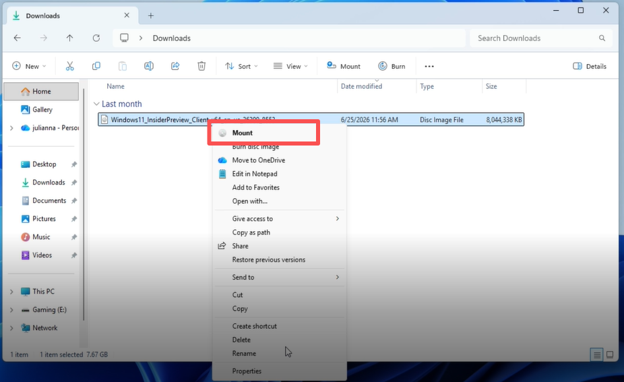
Step 2. After downloading the ISO file, right-click it and select Mount. Then Windows will create a virtual DVD drive.
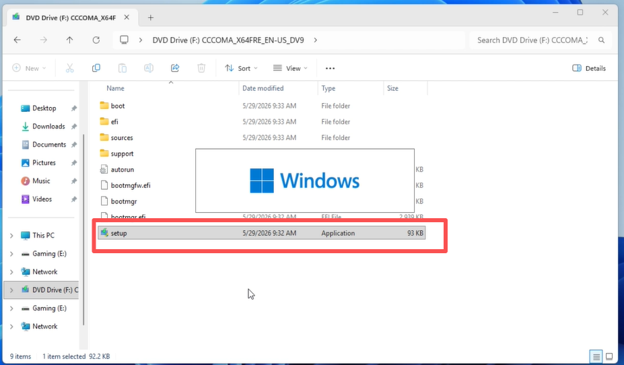
Step 3. Open the DVD drive, find and double-click the setup file to start Windows Setup.
Step 4. When the User Account Control window appears, click Yes. Windows Setup will begin preparing the installation process. Depending on your hardware, this step may take several minutes.
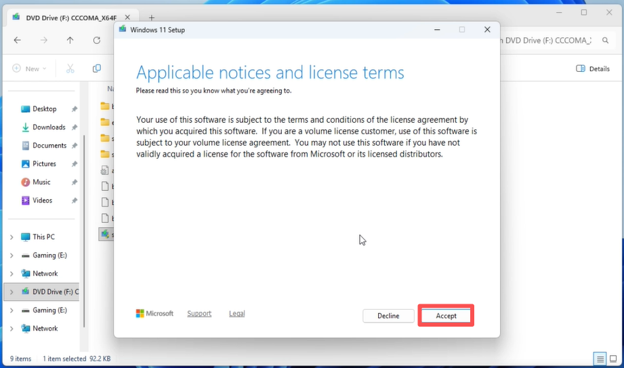
Step 5. Wait for Windows Setup to check for available updates before continuing. Then review the license terms and click Accept.
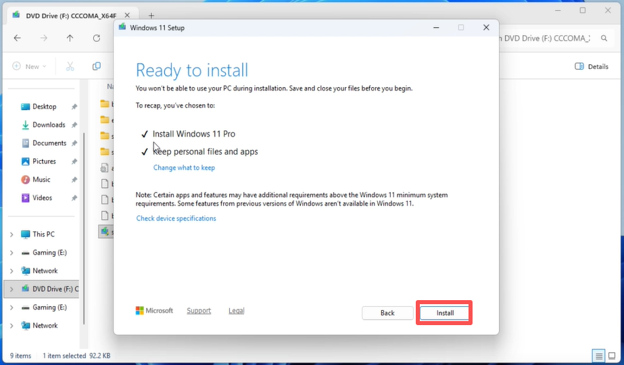
Step 6. On the Ready to install screen, make sure the option says, “Install Windows 11 Pro
, Keep personal files and apps”. After confirming everything is correct, click Install.
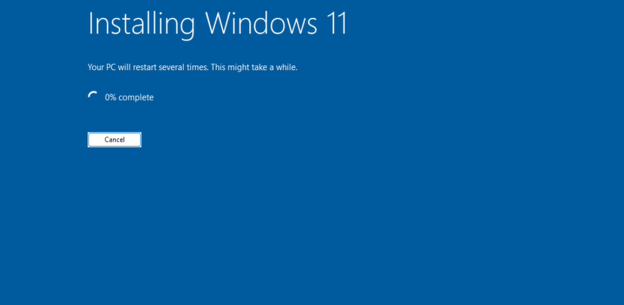
Step 7. Windows will start installing Windows 11 26H2. During the process. Your PC will restart several times and just keep going on until the installation is complete.
Step 8. After the upgrade is complete, log into your account and check if the system is the 26H2 version. You can also check your applications and files to confirm everything has been successfully preserved.
To Sum Up
An in-place upgrade is one of the safest ways to move to Windows 11 26H2 without reinstalling your entire system.
Compared with Windows Update, it gives you more control because you can manually start the upgrade process using the ISO file. Compared with a clean installation, it saves time because your files, apps, and settings remain intact.
FAQs
Can I upgrade from Windows 11 25H2 to 26H2 without reinstalling Windows?
Yes. Windows 11 25H2 users can perform an in-place upgrade to Windows 11 26H2 using the ISO file. This allows you to move to the newer version without formatting your drive or reinstalling applications.
Why can’t I see Windows 11 26H2 in Windows Update?
Windows feature updates are usually released gradually. Microsoft may delay the update for some devices due to compatibility checks or staged rollout. If Windows Update does not show 26H2, you can use the ISO-based in-place upgrade method instead.
What is the difference between an in-place upgrade and a clean installation?
An in-place upgrade installs the new Windows version while keeping your files and applications. A clean installation removes the existing Windows installation and requires you to reinstall programs and restore your files. Choose an in-place upgrade for convenience and a clean install for a completely fresh system.