Windows 11 26H2 is now officially available, bringing new features, improvements, and updates to the Windows operating system. If you’re running Windows 11 25H2 or 24H2 and want to try the latest version, there are several ways to upgrade without reinstalling Windows.
In this guide, Your System Fixer will walk you through three practical methods to upgrade to Windows 11 26H2, including Windows Update, manually installing the Enablement Package, and using an ISO file. Follow the method that best fits your situation.
Check Before Upgrading to Windows 11 26H2
Before upgrading, make sure your computer is ready for Windows 11 26H2. Your device should meet the official Windows 11 system requirements and have enough free disk space to complete the installation.
- Check Your Current Windows Version: Press Win + R, type winver, and press Enter. Check whether you’re running Windows 11 24H2 or 25H2.
- Check Available Disk Space: Go to Settings > System > Storage and check the free space on your C: drive. If there is no available space, you can delete unnecessary files, uninstall apps, or run disk cleanup.
- Back Up Your Important Files: Copy important files to an external drive or cloud storage. You can also create a restore point by searching for Create a restore point in Windows Search.
How to Upgrade Windows 11 26H2 from 25H2 or 24H2
Way 1. Upgrade to Windows 11 26H2 via Windows Update
This is the easiest, and most users recommend it. If your computer is eligible for the Windows 11 26H2 upgrade, you can download and install it directly through Windows Update without manually downloading installation files.
Step 1. Press Win + I to open Settings.
Step 2. Select Windows Update from the left panel.
Step 3. Turn on Get the latest updates as soon as they’re available if this option is available.
Step 4. Click Check for updates and wait for Windows to check for available updates.
Step 5. If you see Windows 11, version 26H2, click Download & install. Then wait for Windows to download and install the update. When prompted, restart your computer to complete the upgrade.
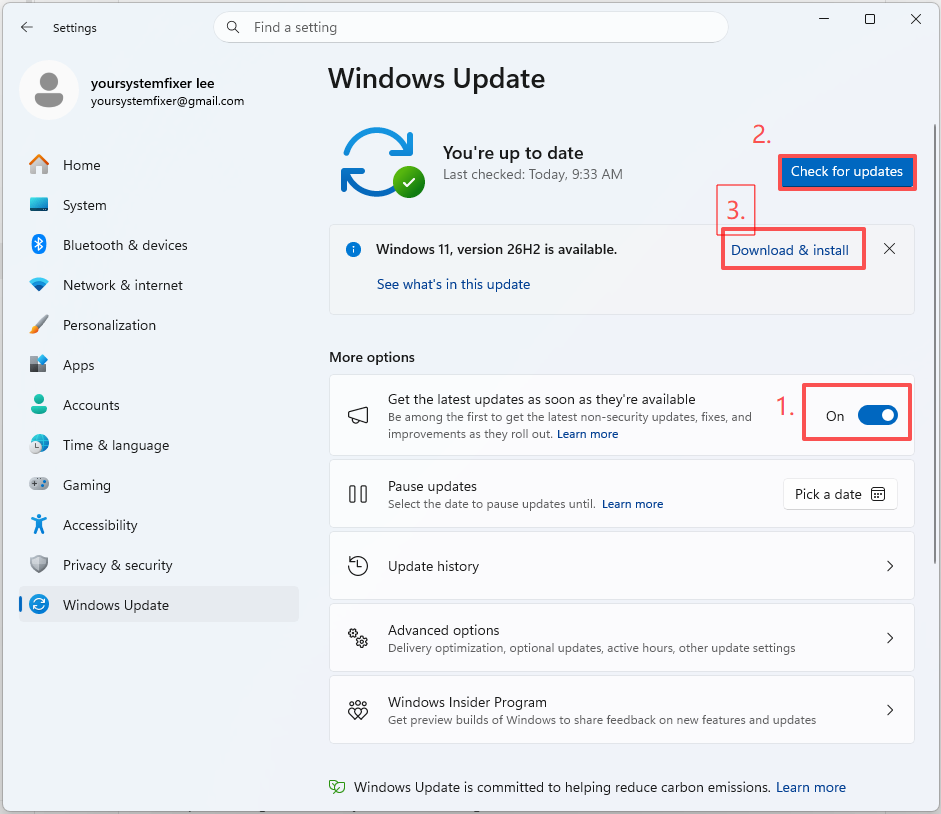
Microsoft uses a controlled rollout to deliver feature updates. Even if your computer meets the requirements, Windows 11 26H2 is not available here, try the next method.
Way 2. Manually Install the Windows 11 26H2 Enablement Package
If Windows Update doesn’t offer Windows 11 26H2, you can try installing the Enablement Package manually. Windows 11 24H2, 25H2, and 26H2 share the same core operating system files. The Enablement Package activates the new 26H2 features that are already included in supported monthly updates.
Step 1. Install the latest cumulative update for Windows 11 24H2 or 25H2 and restart.
Step 2. Download the Windows 11 26H2 Enablement Package (KB5121794) and save it on your PC.
Step 3. Locate the .msu file in your Downloads folder and double-click it to start the installation.
Step 4. Click Yes in Windows Update Standalone Installer.
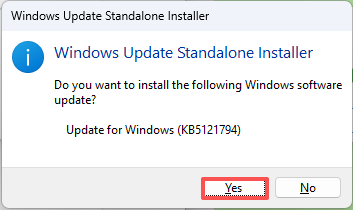
Step 4. Click Restart Now and follow the on-screen instructions to install the update. Wait for the process to finish.
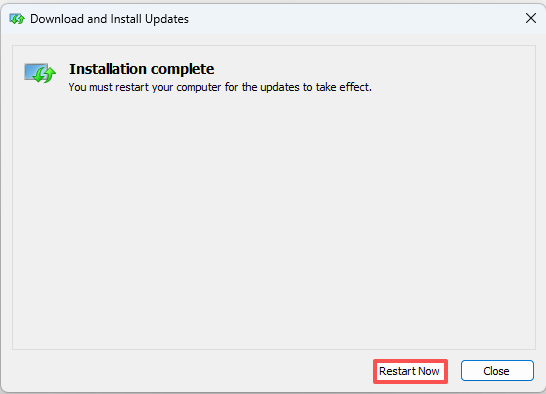
After restarting, you can check if your PC has upgraded to Windows 11 26h2.
Way 3. Upgrade to Windows 11 26H2 Using an ISO File
If Windows Update doesn’t offer version 26H2 or the Enablement Package doesn’t work, upgrading through an ISO file is another option.
Step 1. Visit Microsoft’s official Download Windows 11 page and get the latest version of the Windows 11 26H2 ISO.
Step 2. Right-click the ISO file and select Mount. Windows will create a virtual DVD drive containing the installation files.
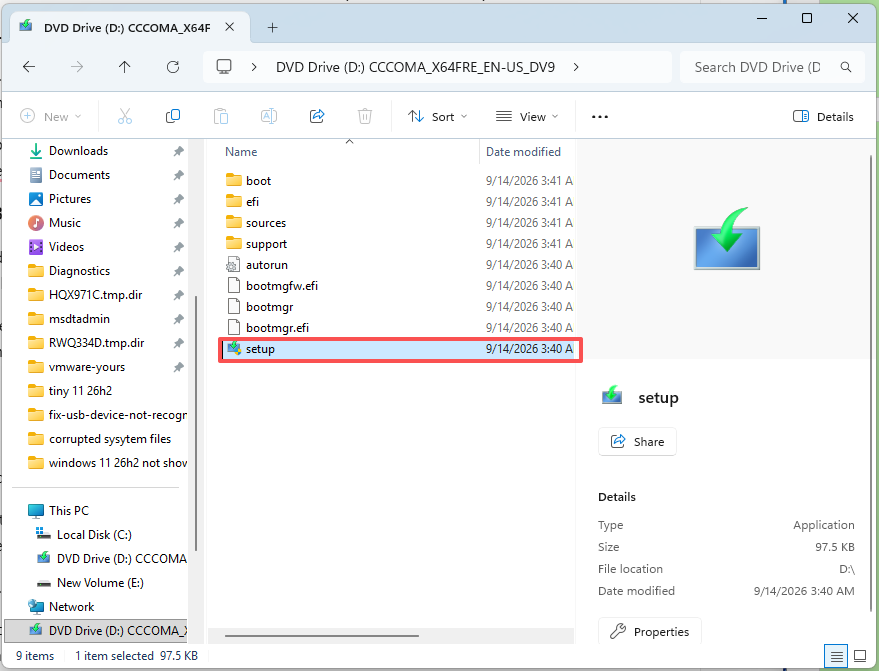
Step 3. Open the newly mounted drive and double-click Setup to launch Windows Setup.
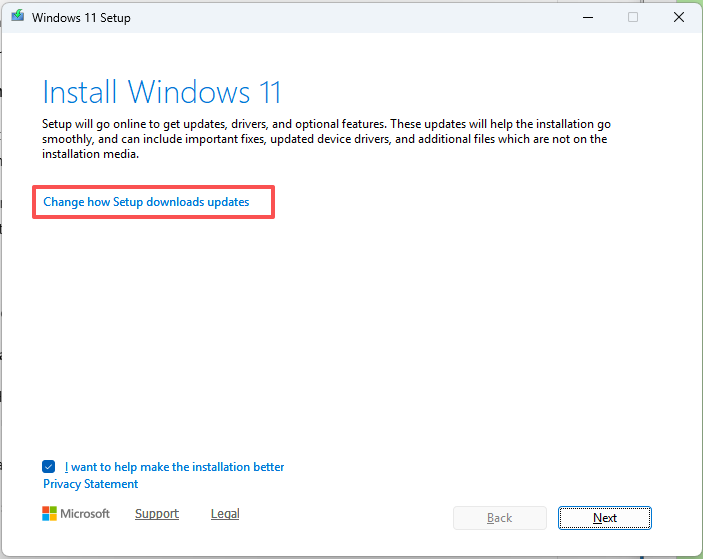
Step 4. Click Change how Setup downloads updates and select Not right now, then click Next.
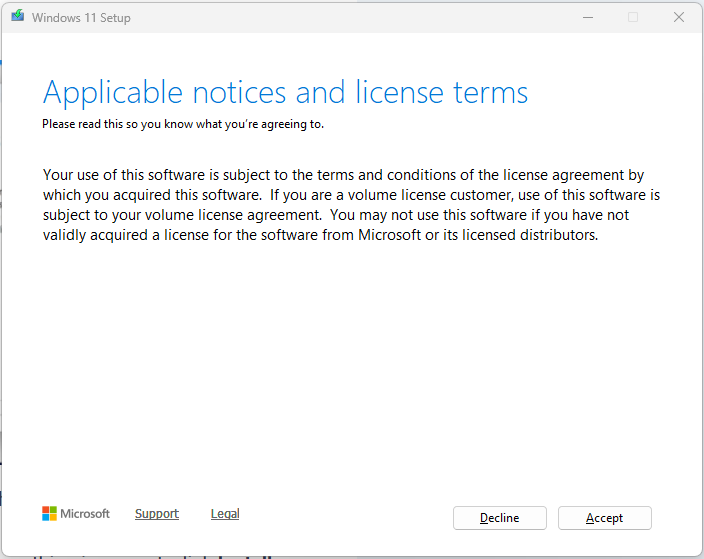
Step 5. Click Accept to accept the license terms.
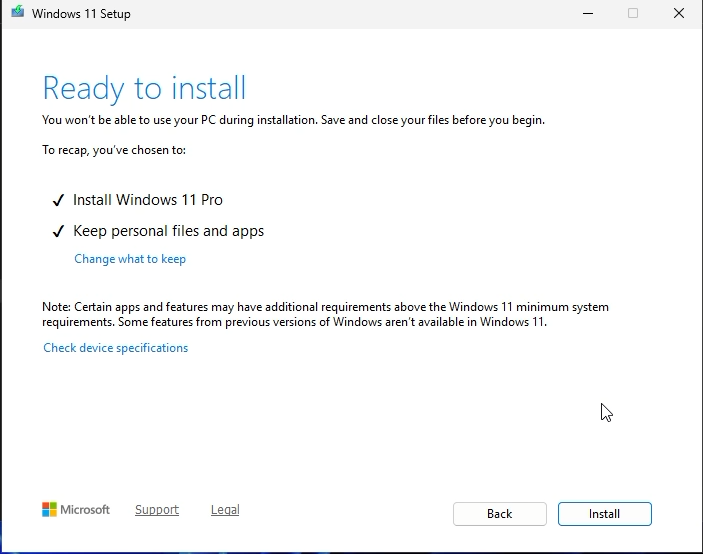
Step 5. When you reach the Ready to install screen, click Change what to keep if you need to review the installation options.
Step 6. Select Keep personal files and apps to preserve your existing files, settings, and installed applications.
Step 7. Review the installation settings and click Install to begin upgrading Windows. Your computer may restart several times during the installation. Keep your PC connected to power and wait for the process to finish.
Which Method Should You Choose to Upgrade to Windows 11 26H2
All three methods can help you upgrade Windows 11 25H2 or 24H2 to 26H2 without performing a clean installation. However, the best choice depends on whether the update is available on your PC and how comfortable you are with manual installation.
| Method | Difficulty | Best For | Potential Risks |
| Windows Update | Easy | Users who can see the 26H2 update in Settings | Update may not be available immediately due to Microsoft’s staged rollout |
| Enablement Package | Easy to Moderate | Users running 24H2 or 25H2 who meet the prerequisite requirements | Installation may fail if required updates are missing or the package is incompatible |
| ISO File | Moderate | Users who want to upgrade manually or troubleshoot update availability | Requires a large download and enough disk space; incorrect installation choices may affect existing files and apps |
FAQ
Why Is Windows 11 26H2 Not Available on My PC?
Windows 11 26H2 may not appear due to gradual rollout, compatibility issues, or missing updates. To fix this, enable Get the latest updates as soon as they’re available, install pending updates, restart your PC, and check Windows Update again.
Will Upgrading to Windows 11 26H2 Delete My Files?
No. When you perform an in-place upgrade using Windows Update, the Enablement Package, or the ISO method with Keep personal files and apps selected, your personal files should remain intact. However, unexpected problems can occur during an operating system upgrade. It’s always recommended to back up important files before proceeding.
How Much Free Disk Space Do I Need to Upgrade to Windows 11 26H2?
You should have at least 20 GB of free space on your C: drive before upgrading to Windows 11 26H2. The actual requirement may vary depending on your installation method and system configuration. If you don’t have enough space, use Settings > System > Storage to delete temporary files, uninstall unused apps, or move large files to another drive.
Can I Roll Back to Windows 11 25H2 After Upgrading to 26H2?
Yes. In most cases, you can return to your previous Windows version within 10 days after upgrading, provided that the previous installation files are still available.
To roll back from Windows 11 26H2 to 25H2:
- Press Win + I to open Settings.
- Go to System > Recovery.
- Under Recovery options, find Go back.
- Click Go back and follow the on-screen instructions.
- Restart your PC when prompted.
The rollback process is designed to keep your personal files, but apps, drivers, and settings changed after the upgrade may be removed or restored to their previous state.