The latest Windows 25H2 version has been released, but lots of users have difficulty installing it on an unsupported PC. Don’t worry. This guide from Your System Fixer shares with a simple guide to help complete the Windows 25H2 installation.
TL;DR – Watch Quick Windows 11 25H2 Install Video Guide
Key Risks You Must Understand Before Upgrading
Installing Windows 11 25H2 on unsupported PCs is not technically difficult, but it does come with several real-world limitations that users should understand before proceeding.
Most issues do not happen during installation itself, but after the system is running under unsupported conditions. These risks are generally manageable but should not be ignored.
Main risks include:
- Some PCs may not pass future Windows Update checks, leading to delayed or blocked feature updates
- Driver compatibility issues may appear on older hardware, especially Wi-Fi, GPU, or chipset drivers
- Slight performance variations depending on CPU generation and storage type (HDD vs SSD)
- Security features like TPM-based protections may not be fully active
- Microsoft may not provide official support for troubleshooting on unsupported systems
These limitations do not necessarily prevent usage, but they define what level of stability you can expect in the long term.
How to Bypass System Requirements When Upgrading to Windows 11 25H2
When your PC does not meet official requirements, the installation process focuses on bypassing hardware checks such as TPM, Secure Boot, and CPU validation. Thus, our goal is not to “hack” the system, but to allow Windows Setup to proceed normally on capable hardware.
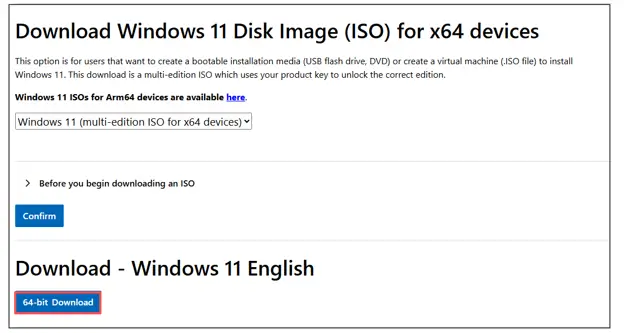
Step 1. Download the Windows 25H2 ISO file.
- Open your web browser, search for “Windows 11 ISO download”, and click on the official Microsoft website.
- Scroll down until you find the section titled “Download Windows 11 Disk Image (ISO) for x64 devices”.
- From the drop-down menu, select “Windows 11 multi-edition ISO for x64 devices” and click Confirm.
- Select product language and click 64-bit Download. Then wait for the download to be completed.
Step 2. Mount the 25H2 ISO File
- Find the ISO file in File Explorer.
- Right-click it and select Mount. Windows will virtually load the file like a DVD drive and assign it a drive letter (e.g., Drive E:).
Step 3. Bypassing the Requirements by Running the Command
- Press the Windows key, type cmd into the search bar.
- Right-click on Command Prompt and select Run as administrator. Then click Yes to open the elevated Command Prompt window.
- In the elevated Command Prompt window, run the following commands in order.
E: \setup.exe /product server
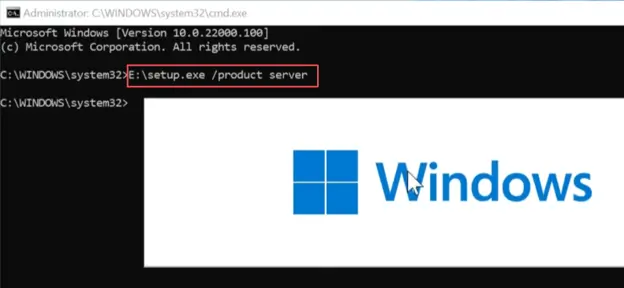
- When the Windows Server setup pops up, follow the on-screen instructions to complete the installation.