The “USB device not recognized” error can happen when connecting a USB flash drive, external hard drive, SSD, keyboard, mouse, printer, or smartphone on Windows 11/10. This error usually occurs when Windows cannot properly detect or communicate with a USB device due to connection problems, faulty drivers, power issues, or hardware failures.
At Your System Fixer, we’ve reviewed user feedback and gathered practical troubleshooting methods for this problem. This guide covers 13 fixes, from simple connection checks to advanced Windows troubleshooting, to help you identify the cause and restore USB functionality.
Why Is My USB Device Not Recognized in Windows 11/10
A USB device may not be recognized because of a faulty connection, an outdated driver, incorrect power management settings, or a Windows configuration problem. The following table summarizes the most common causes and what they mean.
| Possible Cause | Description |
| Faulty USB port or cable | A damaged port, loose connection, or faulty cable can prevent Windows from detecting the device. |
| USB device problems | The USB device itself may be damaged or malfunctioning. |
| Outdated or corrupted drivers | Missing, incompatible, or corrupted USB device drivers can prevent proper detection. |
| USB controller problems | Outdated chipset or USB controller drivers may cause connection and compatibility issues. |
| USB power management | Windows may suspend a USB device or hub, causing connection problems in certain situations. |
| Windows startup or service issues | Fast Startup, Plug and Play configuration, or third-party software conflicts may interfere with USB detection. |
| Windows or firmware problems | Corrupted system files, outdated firmware, or hardware compatibility issues may affect USB functionality. |
Before trying the solutions below, disconnect unnecessary USB devices and save your work. For the best results, follow the fixes in order, starting with basic connection checks before changing Windows settings or drivers. Let’s see how to fix USB not recognized in Windows 11/10.
TL;DR – Watch Quick Fixes for USB Device Not Recognized Error
Stage 1. Check the USB Device and Connection
Start by checking the physical connection. A faulty USB port, cable, or device can cause the USB malfunction error, and there is no need to change Windows settings if the hardware itself is defective.
Fix 1. Try Another USB Port or Connect the Device to Another PC
Disconnect the USB device and connect it to another USB port on your computer. If possible, use a port directly on the PC instead of a USB hub or extension cable.
You can also connect the device to another computer. If it works normally on another PC, the problem is more likely related to your original computer. If it is not recognized on multiple computers, the USB device or its cable may be faulty.
For external drives and smartphones, try another compatible USB cable if available.
Fix 2. Restart Your Computer and Reconnect the USB Device
Sometimes, Windows encounters a temporary USB detection or driver initialization problem. Disconnect the USB device, restart your computer, and wait until Windows finishes loading. Then reconnect the device and check whether it is recognized.
This simple fix can resolve temporary system or USB connection glitches without changing any settings.
Stage 2. Fix USB Device and Driver Problems
Windows uses device drivers and USB controllers to communicate with connected hardware. If a USB device has a corrupted driver, appears as an unknown device, or uses an outdated controller driver, Windows may fail to recognize it.
Fix 3. Uninstall the Unknown USB Device and Reinstall It
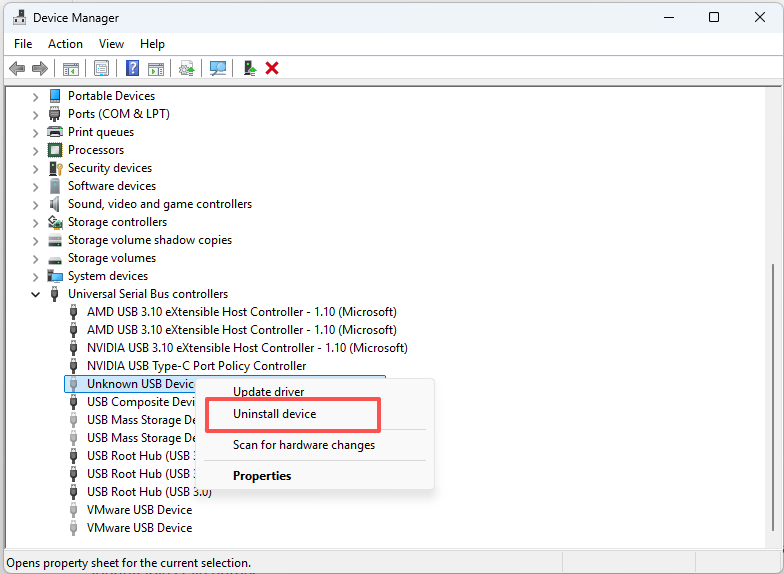
If Windows displays an Unknown USB Device entry or a yellow warning icon in Device Manager, uninstalling the problematic device may help.
Step 1. Press Win + X and select Device Manager.
Step 2. Expand Universal Serial Bus controllers.
Step 3. Look for Unknown USB Device, Unknown USB Device (Device Descriptor Request Failed), or another entry with a yellow warning icon.
Step 4. Right-click the problematic entry and select Uninstall device.
Step 5. Click View at the top of Device Manager and select Show hidden devices.
Step 6. Look for relevant grayed-out USB device entries. If you can identify stale entries associated with the problematic device, right-click them and select Uninstall device.
Step 7. Restart your computer, and Windows will attempt to detect the connected hardware and reinstall the necessary device drivers.
Fix 4. Update or Reinstall the USB Device Driver
An outdated or corrupted device driver may prevent Windows from communicating with a USB device correctly. You can update or reinstall the driver through Device Manager.
Step 1. Open Device Manager again, expand Disk drives or Universal Serial Bus controllers, and locate the problematic USB device.
Step 2. Right-click the device and select Update driver.
Step 3. Select Search automatically for drivers.
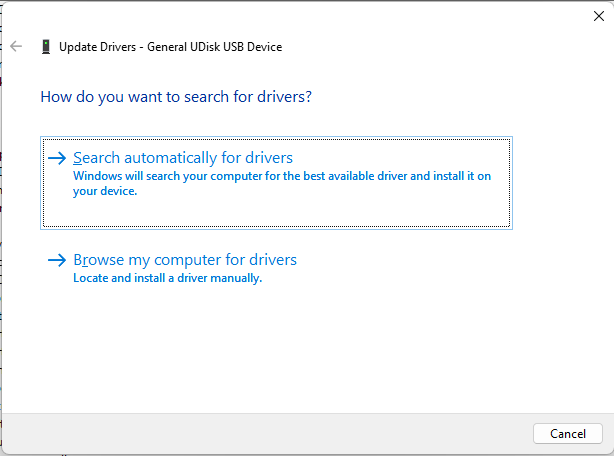
Step 4. Follow the on-screen instructions if Windows finds an available driver.
Step 5. If it doesn’t work, you can right-click the problematic USB device, select Uninstall device, and restart your computer. Also, you can open the device’s Properties > Driver tab and check whether Roll Back Driver is available.
Fix 5. Update Motherboard Chipset and USB Controller Drivers
If multiple USB devices are not recognized, the problem may involve the motherboard chipset or USB host controller drivers rather than an individual device.
Step 1. Identify your computer or motherboard model.
Step 2. Visit the official support website of your PC or motherboard manufacturer.
Step 3. Find the driver download page for your specific model.
Step 4. Look for the latest compatible Chipset Drivers and USB Controller Drivers, if provided.
Step 5. Download and install the appropriate drivers.
Step 6. Restart your computer and reconnect the USB device.
Stage 3. Fix USB Power Management Issues
Windows includes power-saving features that can reduce power consumption by suspending idle USB devices. However, certain devices or drivers may not resume correctly, resulting in USB recognition problems.
Fix 6. Disable USB Power Management
Windows may turn off a USB Root Hub to save power. Disabling this option can help if connected USB devices stop responding or are not detected after waking the computer.
Step 1. Press Win + X and select Device Manager.
Step 2. Expand Universal Serial Bus controllers.
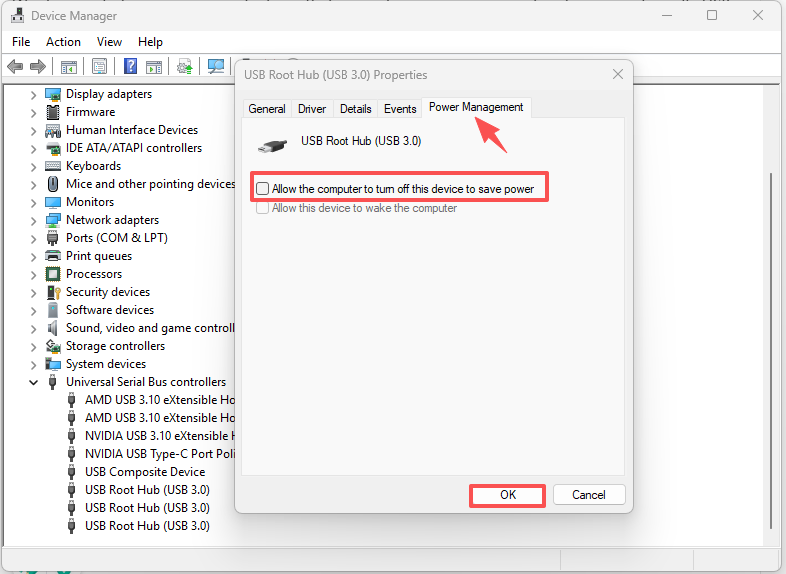
Step 3. Right-click a USB Root Hub entry and select Properties.
Step 4. Open the Power Management tab.
Step 5. Uncheck Allow the computer to turn off this device to save power.
Step 6. Click OK to save the changes.
Step 7. Repeat these steps for other applicable USB Root Hub entries. After that, restart your computer and check whether the USB device works.
Fix 7. Disable USB Selective Suspend
USB Selective Suspend is another Windows power-saving feature. It allows Windows to suspend individual USB devices when they are not in use. If a device does not resume correctly, temporarily disabling this feature may help troubleshoot the problem.
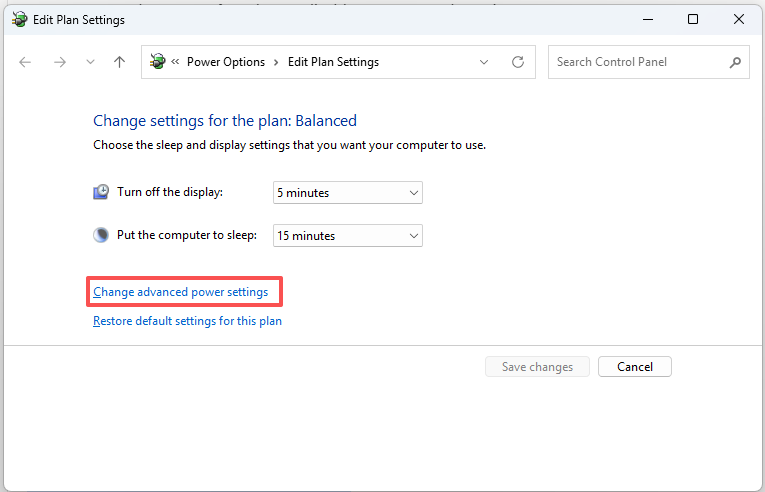
Step 1. Type Edit power plan in the Windows search box and open it.
Step 2. Click Change advanced power settings.
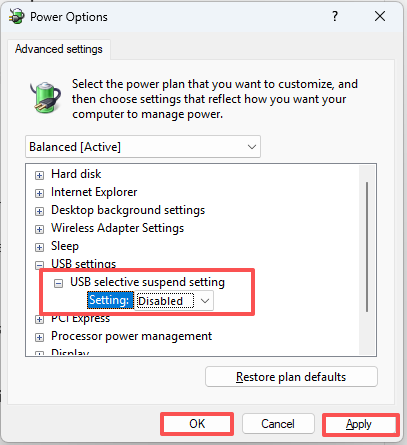
Step 3. Expand USB settings.
Step 4. Expand the USB selective suspend setting.
Step 5. Set the available settings to Disabled.
Step 6. Click Apply and OK.
Step 7. Restart your computer and reconnect the USB device.
Note: USB Selective Suspend is enabled by default and is recommended by Microsoft for power efficiency. Disable it temporarily for troubleshooting. If it does not resolve the issue, restore the original setting.
Fix 8. Perform a Power Reset to Reset USB Ports
A power reset can help clear certain temporary power-state issues and restore USB functionality. This method is worth trying if USB devices suddenly stop working or Windows continues displaying USB recognition errors even after restarting.
Shut down your PC, disconnect the power cable or laptop charger, and hold the power button for about 30 seconds. Reconnect the power, turn on your computer, and test the USB device again.
Fix 9. Disable Fast Startup in Windows 11/10
Fast Startup helps Windows start more quickly after shutdown. However, if a USB device or controller does not initialize correctly during startup, disabling this feature may help.
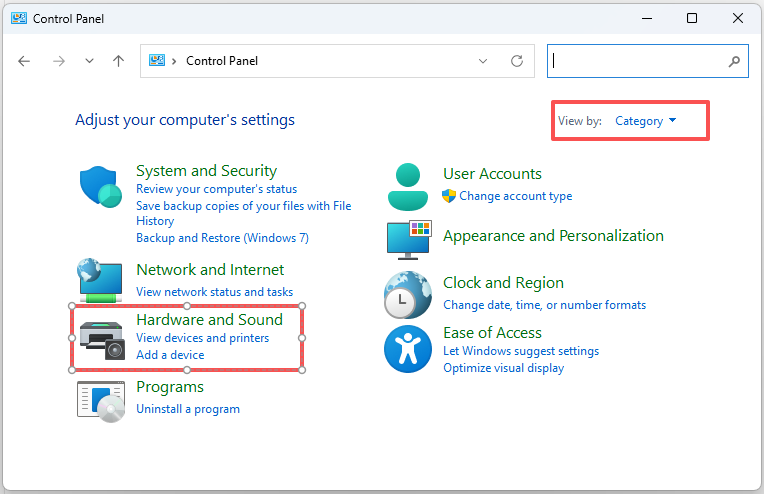
Step 1. Press Win + R, type control, and press Enter.
Step 2. Open Hardware and Sound > Power Options.
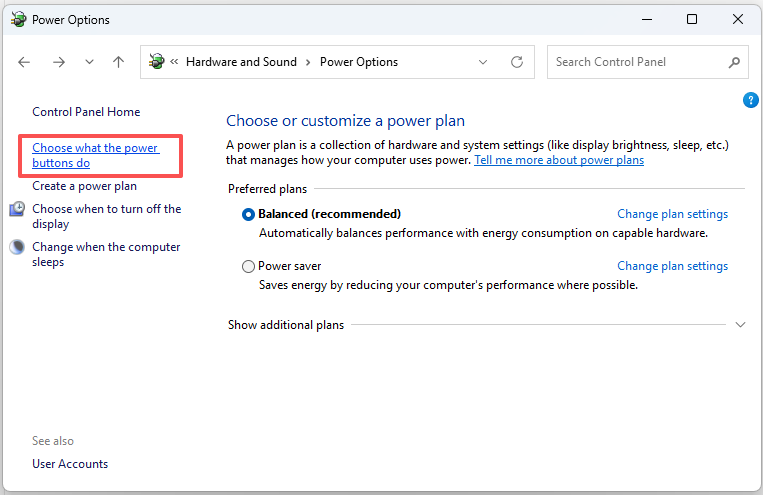
Step 3. Click Choose what the power buttons do on the left.
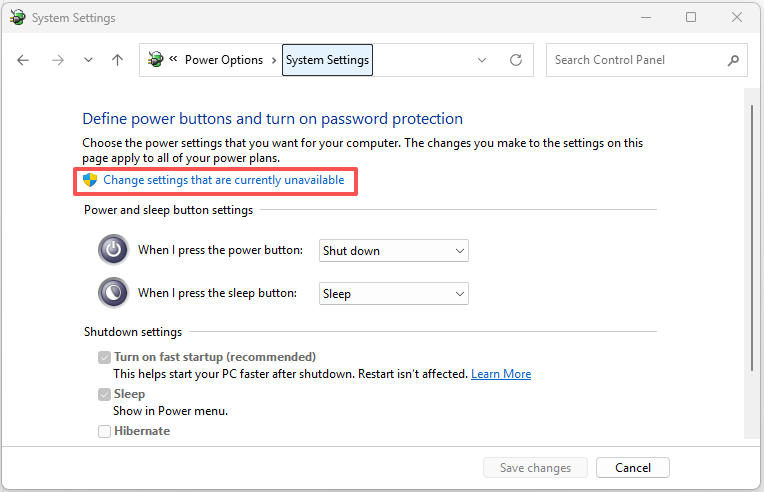
Step 4. Click Change settings that are currently unavailable.
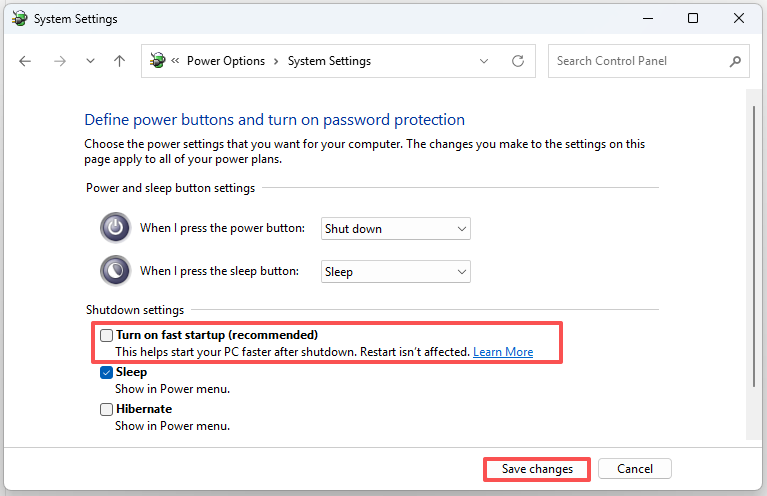
Step 5. Under Shutdown settings, uncheck Turn on fast startup (recommended).
Step 6. Click Save changes and restart your PC. Then reconnect the USB device and check whether the problem is resolved.
Stage 4. Troubleshoot Windows and Hardware Issues
If the previous solutions do not work, the problem may involve Windows services, third-party software, BIOS/UEFI settings, or system configuration. These solutions require more attention, so try them only after checking the USB connection, drivers, and power settings.
Fix 10. Check the Plug and Play Service
The Plug and Play service allows Windows to detect and configure connected hardware automatically. If this service has been disabled or modified by third-party optimization software, USB devices may not be detected correctly.
Step 1. Press Win + R, type services.msc, and press Enter.
Step 2. Find Plug and Play in the Services window.
Step 3. Double-click the service to open its Properties.
Step 4. Check its service status. If it is stopped and Windows allows it to be started, select Start.
Step 5. Check whether its startup configuration has been changed from the Windows default.
Step 6. If a third-party tool has modified the service configuration, restore the appropriate Windows configuration.
Step 7. Restart your computer and test the USB device.
Do not force the service to Automatic just because a USB device is not recognized. Windows manages some system services through trigger-based startup.
Fix 11. Perform a Clean Boot to Check for Software Conflicts
Third-party antivirus programs, system optimization tools, and background applications may interfere with hardware detection. A Clean Boot starts Windows with a minimal set of drivers and startup programs, helping you identify whether a background service is causing the problem.
Step 1. Press Win + R, type msconfig, and press Enter.
Step 2. Go to the Services tab.
Step 3. Check Hide all Microsoft services.
Step 4. Click Disable all to temporarily disable the remaining third-party services.
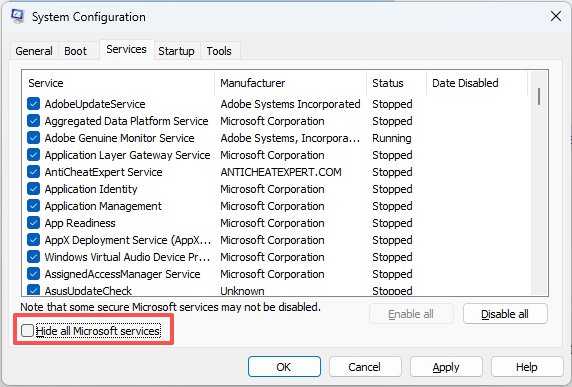
Step 5. Open the Startup tab and click Open Task Manager.
Step 6. Disable the enabled third-party startup applications.
Step 7. Close Task Manager and click OK in System Configuration.
Step 8. Restart your computer and reconnect the USB device.
If the USB device works normally after a Clean Boot, a third-party service or startup application may be responsible. You can re-enable the disabled services and applications gradually to identify the conflicting program. After testing, restore your normal startup configuration.
Fix 12. Check USB Device Recognition in BIOS/UEFI
Checking whether a compatible USB device works in BIOS/UEFI can help determine whether the problem is related to Windows or the computer’s hardware and firmware.
Step 1. Restart your computer.
Step 2. Press the appropriate BIOS/UEFI key during startup. Common keys include F2, Delete, F10, and Esc, depending on the manufacturer.
Step 3. Connect a USB keyboard to your computer if it is not already connected.
Step 4. Check whether the keyboard responds in the BIOS/UEFI interface.
Step 5. Exit BIOS/UEFI without changing unrelated settings.
If the keyboard works in BIOS/UEFI but not in Windows, the issue may be related to Windows drivers, settings, or software. If it also fails outside Windows, a USB port, controller, power, or firmware issue may be involved.
Fix 13. Reset Windows or Reinstall Windows 11/10
If none of the previous fixes work, Windows itself may have corrupted system files, damaged driver configurations, or other software-related problems. In this case, you may consider resetting or reinstalling Windows 11.
Important: Back up important files before resetting Windows. If device encryption or BitLocker is enabled, make sure you have your recovery key.
Step 1. Open Settings.
Step 2. In Windows 11, go to System > Recovery. In Windows 10, go to Update & Security > Recovery.
Step 3. Under Reset this PC in Windows 11, click Reset PC (Windows 11) or Get started (Windows 10).
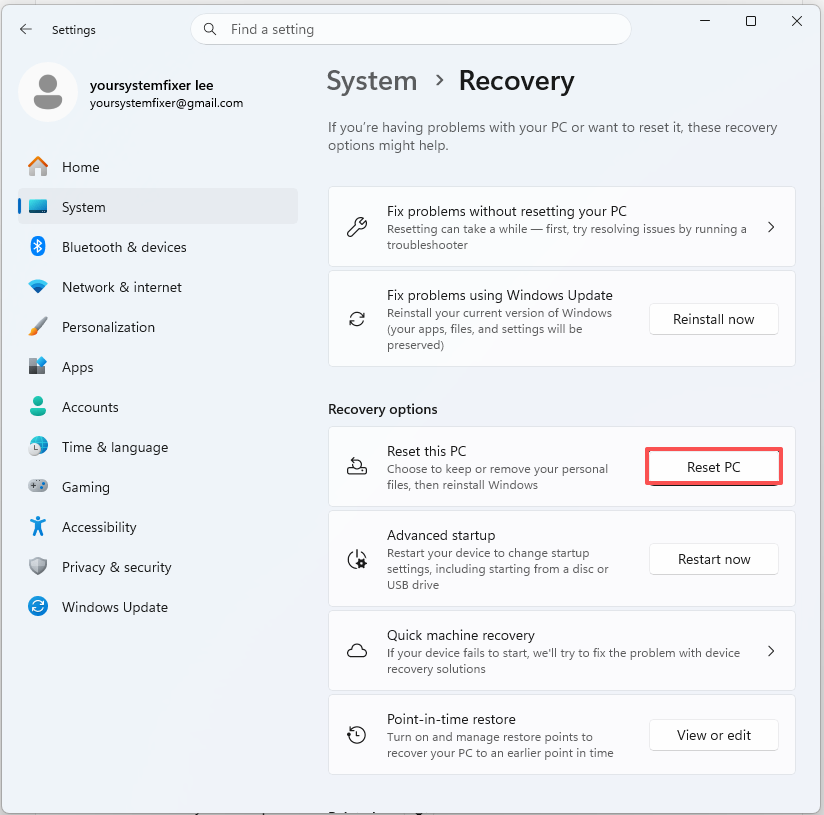
Step 4. Select Keep my files. This option reinstalls Windows while keeping your personal files. However, installed applications and many settings will be removed.
Step 5. Choose Cloud download or Local reinstall. Cloud download obtains a fresh copy of Windows, while Local reinstall uses the existing Windows installation files.
Step 6. Follow the on-screen instructions to complete the reset.
FAQ
1. Why Does My Computer Keep Saying USB Device Not Recognized When Nothing Is Plugged In?
This can happen when Windows has an outdated or corrupted USB device entry, or when a USB controller has a temporary detection problem.
Open Device Manager, expand Universal Serial Bus controllers, and look for Unknown USB Device entries or devices with warning icons. You can uninstall the relevant problematic entries, show hidden devices, and restart your computer.
If the error continues, check USB Root Hub power management and perform a power reset.
2. How Do I Know If My USB Port or USB Device Is Faulty?
Try connecting the USB device to another port or computer. You can also connect another working USB device to the suspected port.
If the original device fails on multiple computers, its cable or hardware may be faulty. If several USB devices fail on the same computer, the problem may involve the computer’s USB ports, controller, drivers, or power settings.
3. Will Formatting a USB Drive Fix the USB Device Not Recognized Error?
No. Formatting is not a universal solution for USB recognition problems. If Windows cannot detect the USB device at all, formatting will not fix the underlying connection, hardware, or driver issue.
If the USB drive appears in Disk Management but cannot be accessed normally or shows a write-protected error, you may have a partition or file system problem; you can format the USB to clear the error.
4. Can a USB Device Be Repaired If Windows Does Not Recognize It?
If the problem is related to a driver, USB port, cable, or Windows setting, you may be able to restore the device by following the troubleshooting methods in this guide. However, if the USB device has physical damage, a failed controller, or damaged internal components, software fixes may not help. In that case, professional hardware repair or data recovery may be necessary.