Seeing the error “The type of the file system is RAW. CHKDSK is not available for RAW drives” when accessing your USB drive, SD card, or external hard drive? This usually means Windows can no longer recognize the drive’s file system correctly. In this guide, Your System Fixer will show you how to safely deal with a RAW drive, recover your important data first, and then format the drive to make it usable again.
TL;DR – Watch the Quick RAW Drive Fix Video Guide
What Does “CHKDSK Is Not Available for RAW Drives” Mean
“The type of the file system is RAW. CHKDSK is not available for RAW drives” means Windows 11 cannot recognize a usable file system on the drive, so CHKDSK cannot check or repair it.
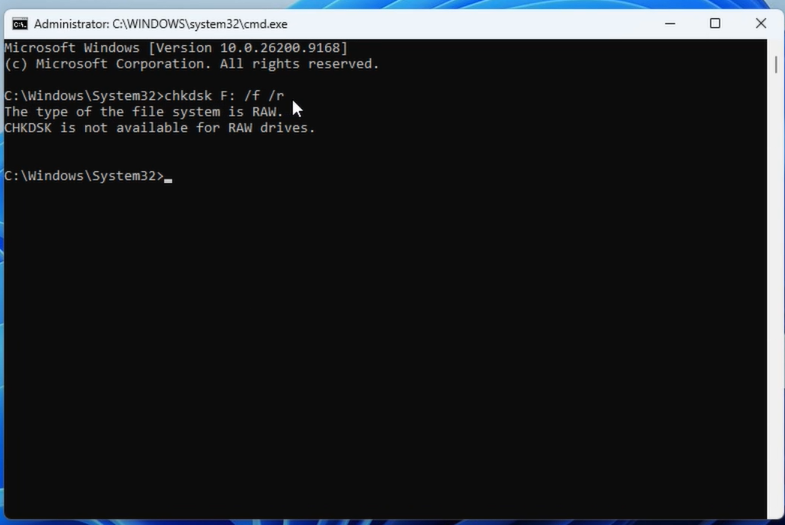
Windows normally needs a recognizable file system, such as NTFS, FAT32, or exFAT, to access files and manage a disk, USB flash drive, or SD card. CHKDSK also depends on this information.
Here are some common reasons why a drive becomes RAW on Windows:
- File system corruption caused by an unsafe removal or sudden power interruption.
- Damaged partition or file system metadata.
- Bad sectors affecting critical file system structures.
- Malware or software-related corruption.
- An interrupted formatting or partitioning operation.
- A failing USB flash drive, SD card, HDD, or SSD.
- An incompatible or unsupported file system.
How to Fix CHKDSK Is Not Available for RAW Drives Without Losing Data
If your USB drive, SD card, or external hard drive is showing as RAW, don’t format it immediately. If the drive contains important files, the safest approach is to check the connection first, recover your data, and then format the drive after backing up all data. Here are detailed steps.
Step 1. Check the USB or Drive Connection
Before making any changes to the RAW drive, check whether the problem is caused by a connection issue. Sometimes, a poor or unstable connection can cause Windows to detect a drive incorrectly.
If you’re using a USB flash drive, SD card, or external hard drive, disconnect it and reconnect it. You can also try a different USB port. If possible, connect the drive directly to your PC instead of using a USB hub. For an internal SATA drive, check the SATA and power cables. If another SATA port is available, you can also try connecting the drive to a different port. If the drive still appears as RAW after checking the connection, continue with the next step.
Step 2. Recover Important Data First
However, if the drive contains important files, do not format it immediately. Instead, recover your important data first using a reliable data recovery tool such as MyRecover, which can scan RAW drives and help recover accessible files. It offers a straightforward interface, making it easier to find and restore your documents, photos, videos, and other important data before formatting the drive.
Step 1. Download and install MyRecover on your Windows PC.
Step 2. Launch the software, and all available drives and recovery locations should be visible in the interface.
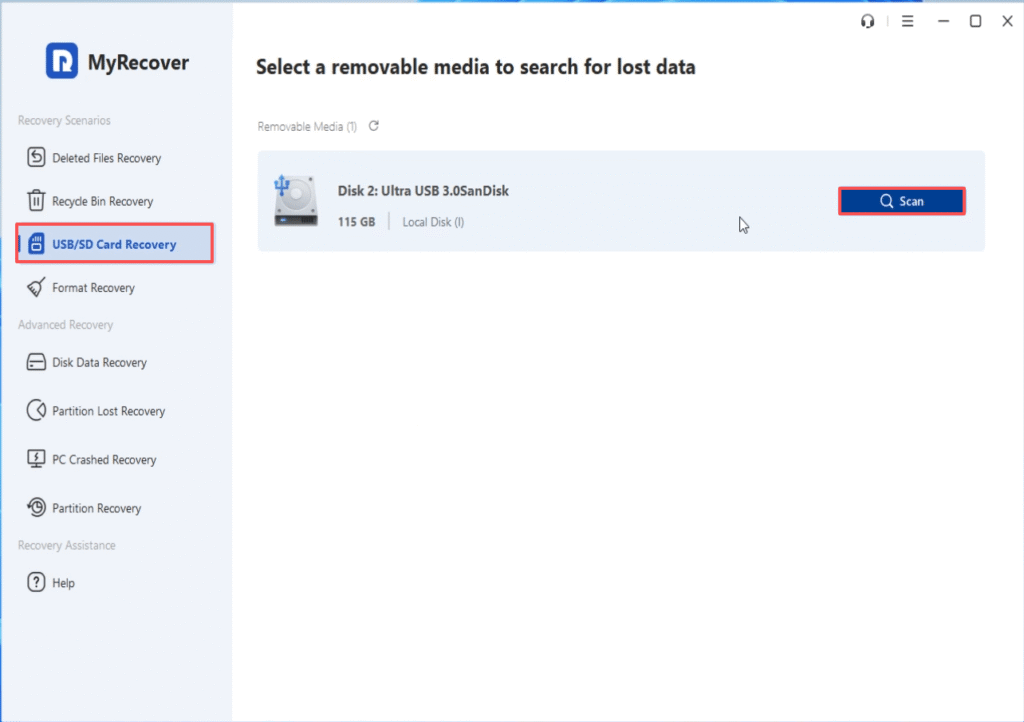
Step 3. Select the RAW USB drive or SD card where your files were stored, and click Scan.
Step 4. When the scan finishes, click OK to view the scan results. Browse the results and select the files you need, including documents, photos, videos, audio files, archives, and other recoverable data.
Step 5. Click Recover to restore the selected files. When prompted to choose a recovery location, select another healthy drive, such as your G: drive. Do not save the recovered files back to the RAW drive, as doing so could overwrite other data you are trying to recover.
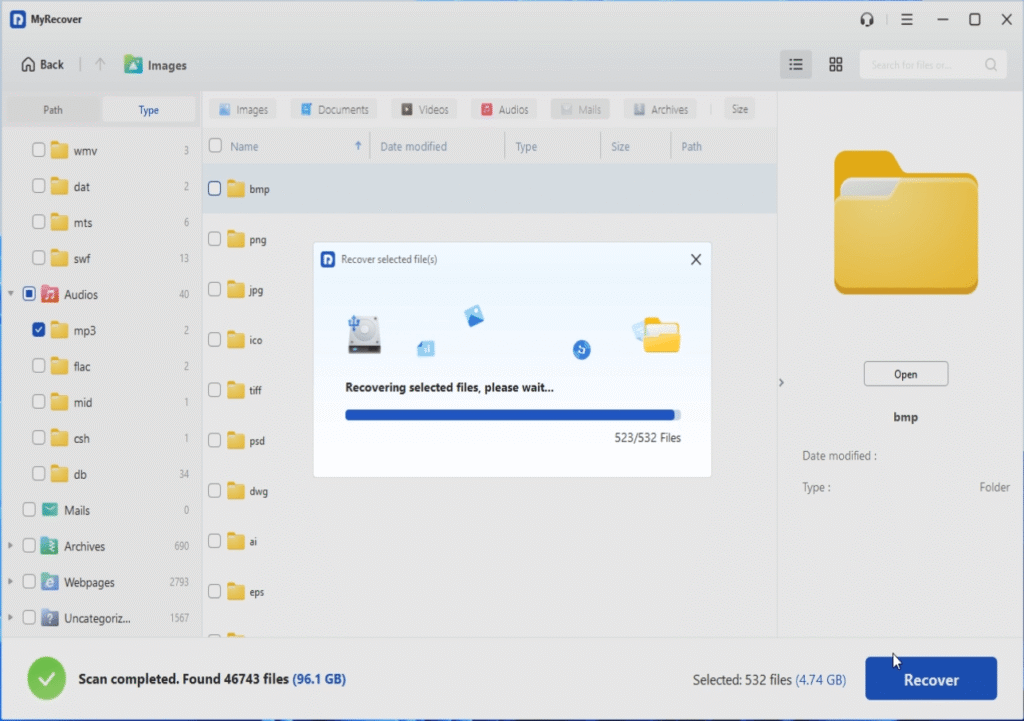
Step 6. Open the destination folder in File Explorer and verify that your recovered files can be opened normally.
Once your important data has been successfully recovered and verified, you can move on to formatting the RAW drive and recreating its file system.
Step 3. Format the RAW Drive with DiskPart
Once you’ve recovered all important files, or if the drive does not contain any data you need, you can format the RAW drive to a file system that Windows 11 can recognize, like NTFS or exFAT. Here’s how to do it using Windows’ built-in DiskPart tool.
Step 1. Open Windows Search, type CMD, and select Run as administrator.
Step 2. In the Command Prompt window, type the following command and press Enter:
diskpartStep 3. Type the following command and press Enter:
list volumeStep 4. Find the volume that corresponds to your RAW drive. Check the drive letter and capacity carefully before continuing.
select volume 7Step 5. Once you’ve confirmed the correct volume, format it as NTFS:
format fs=ntfs quickIf you need better compatibility with macOS and other devices, you can use exFAT instead:
format fs=exfat quick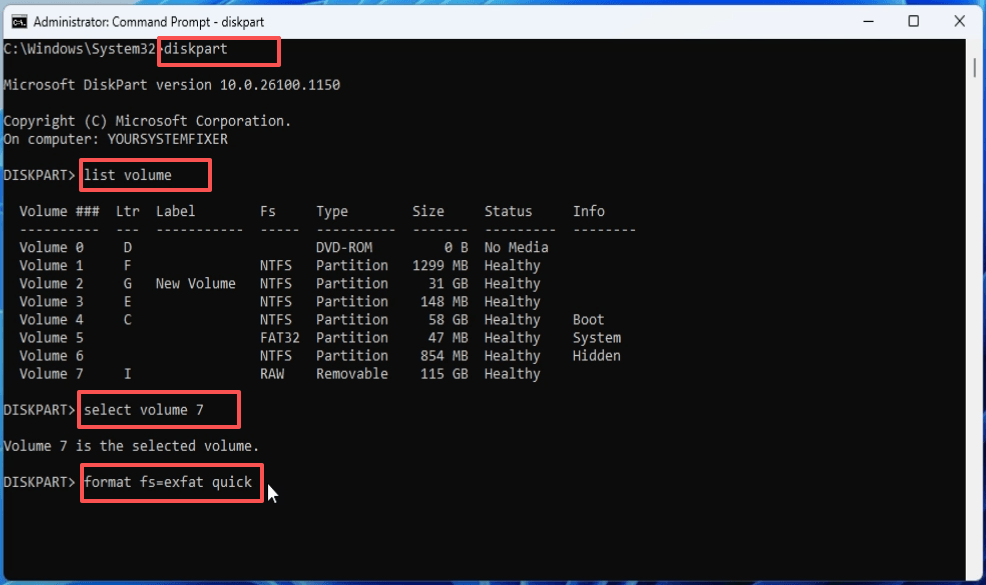
Wait for the formatting process to complete. Once finished, open File Explorer and check whether the drive is accessible again. You can also test the drive by copying a file to it or checking its details in Disk Management.
How to Prevent a Drive From Becoming RAW Again
Once the drive has been formatted and is working normally, a few habits can reduce the risk of future file system corruption. There is no way to completely eliminate hardware failure, but you can avoid many common causes.
Tip 1. Handle Removable Drives Properly
- Use Safely Remove Hardware before disconnecting USB drives.
- Do not unplug a USB flash drive while files are being written.
- Avoid removing SD cards while a camera or other device is actively using them.
- Keep important files backed up on another drive.
Tip 2. Watch for Signs of Drive Failure
- Replace drives that repeatedly become RAW.
- Pay attention to unusually slow read/write speeds.
- Check whether Windows frequently reports disk errors.
- Avoid continuing to use a drive that makes unusual noises or repeatedly disconnects.
- Keep sufficient free space on frequently used storage devices.
- Use reliable storage devices rather than extremely cheap, unknown-brand media.
FAQs
What to do if CHKDSK is not available for RAW drives?
Do not repeatedly run CHKDSK. Recover important data first, then format the RAW drive with NTFS or exFAT if the data is no longer needed.
Can I run CHKDSK on a RAW drive?
No. CHKDSK requires a file system that Windows can recognize. If the volume is RAW, focus on data recovery or file system repair rather than trying to force CHKDSK to run.
How to fix a corrupted SD card RAW drive?
First, stop writing new data to the SD card if you need the existing files. Recover important data with professional recovery software, then format the card as exFAT or FAT32 depending on the device and capacity requirements.
How do I fix a RAW drive without losing data?
Avoid formatting, cleaning, or deleting the partition before recovering your files. Use professional data recovery software to scan the RAW drive and save recovered files to a different storage device. After the data is secure, you can format the original drive.
Should I use NTFS or exFAT for a RAW drive?
Choose NTFS if the drive will mainly be used with Windows PCs and you need Windows-specific features. Choose exFAT when you need broader compatibility with Windows, macOS, cameras, game consoles, or other devices.
How to force run CHKDSK?
There is no reliable way to make CHKDSK repair a genuine RAW volume because CHKDSK depends on readable file system structures. If Windows reports that CHKDSK is not available for RAW drives, recover your data first and then repair or reformat the volume.