I’ve recently noticed more Windows users on Reddit discussing how much RAM WhatsApp Desktop consumes on their PCs. Some users have reported unusually high memory usage, along with slow loading and occasional lag. I decided to investigate the issue, look into the reasons behind it, and test four alternative messaging apps on my own Windows 11 PC. Hopefully, my experience will help you find an option that better fits your needs.
Why WhatsApp Uses So Much RAM on Windows 11
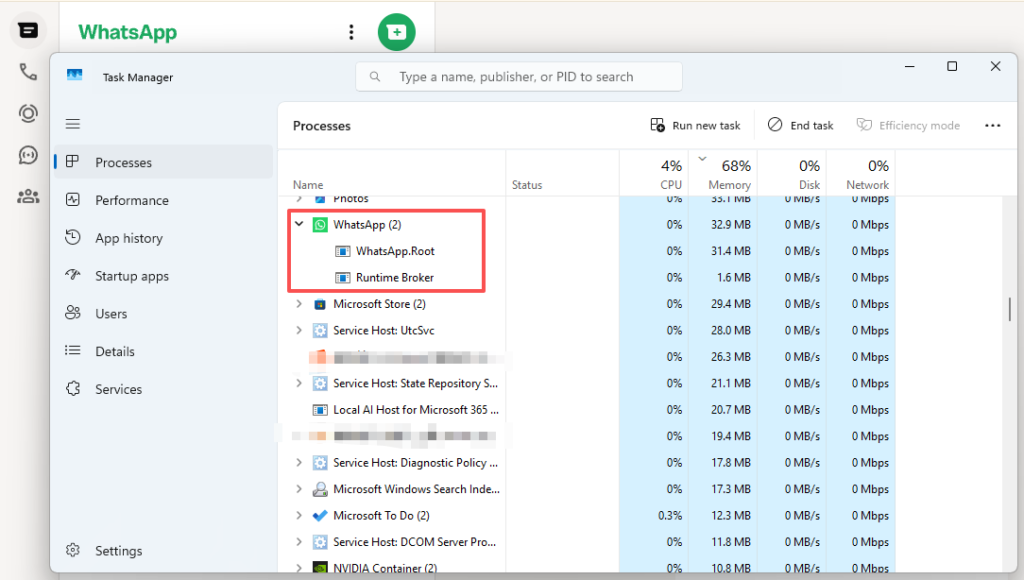
WhatsApp’s high memory usage on Windows 11 has become a common topic in online discussions. One major change is its move from a native Windows application to a WebView2-based desktop experience. However, actual RAM consumption can vary depending on the app version, chat activity, media, and system configuration.
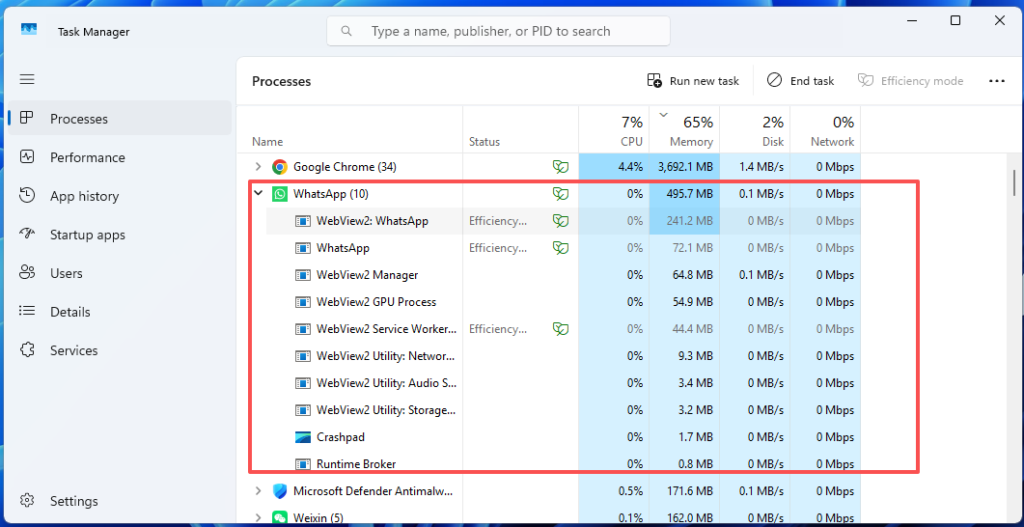
- The move from UWP to WebView2: WhatsApp replaced its older native Windows app with a WebView2-based version that runs web content in a browser engine and may use more memory.
- Multiple background processes: WebView2 runs several processes for browsing, rendering, and graphics, all of which contribute to WhatsApp’s total RAM usage.
- Background activity: WhatsApp may continue running after you close its window to maintain notifications and background connections, depending on its settings.
- Chat and media activity: Opening conversations, loading photos and videos, scrolling through chat history, and making calls can all increase memory usage.
- Performance complaints after the update: Some Reddit users report slower startup, delayed message loading, lag, and freezing after the newer desktop app was introduced.
Best WhatsApp Alternatives for Windows 11
I selected four products recommended in community discussions or that offer a different way to handle messaging on Windows. Before comparing them, keep in mind that RAM usage can vary significantly depending on your hardware, software version, account activity, and background processes.
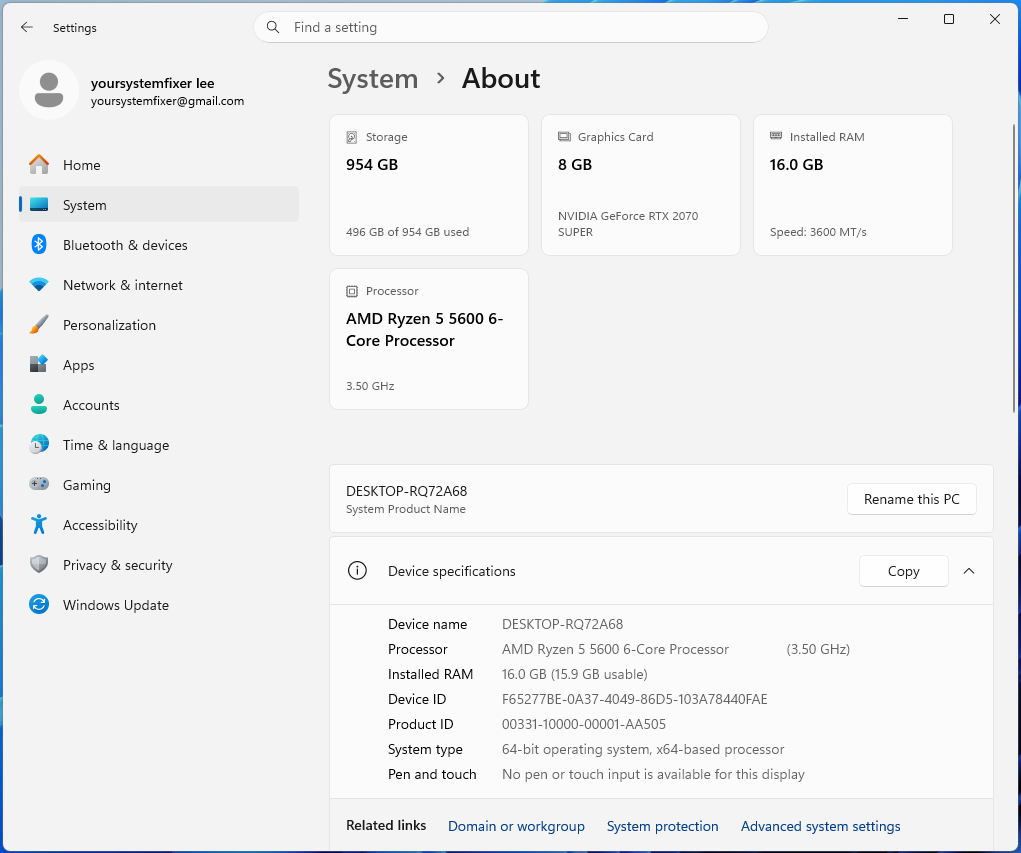
My test environment: All four products were tested on the same Windows 11 PC. The following hardware and software details will help you understand the results.
- Operating System: Windows 11 26H2 OS Build 26300.9711
- Processor: AMD Ryzen 5 5600 6-Core Processor
- Installed RAM: 16.0 GB
- Graphics: 8 GB
- Storage: 1 TB
Telegram
Telegram is a good option if you’re willing to move your conversations to another messaging app. Its Windows desktop client is lightweight, loads chats quickly, and supports large group chats, file sharing, and voice calls. The main downside is that it cannot access your existing WhatsApp chats.
How to Download and Use Telegram Desktop
- Visit the official Telegram Desktop website.
- Select Get Telegram for Windows x64 and download it
- Double-click the installer and follow the on-screen instructions to install it.
- Open Telegram Desktop, click Start Messaging, and choose to log in using your phone number.
- Follow the on-screen instructions to verify your account. You can also use the QR login option if offered.
- Once logged in, your Telegram chats and supported cloud content will synchronize.
My RAM Usage Test:
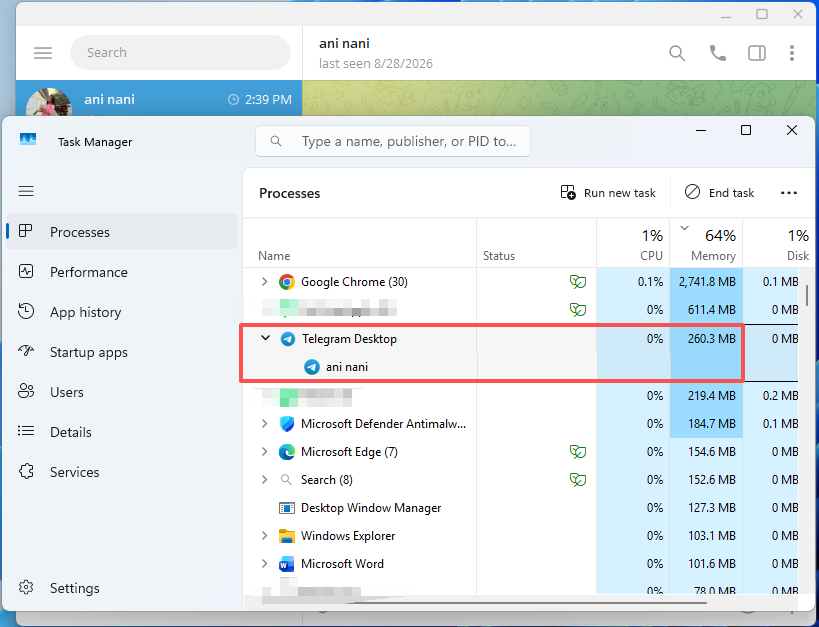
After installing Telegram Desktop and signing in, I checked its memory consumption in Windows Task Manager.
- RAM usage at idle: 250MB and higher
- RAM usage during active messaging: 300MB and higher
Telegram Desktop vs WhatsApp Desktop:
| Pros | Cons |
| Simple, clean, and responsive interface | Cannot access existing WhatsApp chats |
| Generally, feels smoother and uses fewer system resources in user reports | Requires switching to Telegram |
| Open-source desktop client | Contacts also need to use Telegram |
| Supports group chats, file sharing, and voice calls |
ZapFast
ZapFast is an open-source, third-party WhatsApp desktop client built with Rust. Unlike the current WhatsApp Windows app, it uses a native desktop interface rather than embedding a browser engine. It supports messaging, voice messages, attachments, and individual voice and video calls, making it an interesting option for users who want to keep using WhatsApp.
How to Download and Use ZapFast
- Visit the official ZapFast download page and click Download.
- Under Windows, download the x86_64 MSI package for most Intel and AMD PCs. Choose the ARM64 package if your PC uses a Windows ARM processor.
- Run the MSI installer and follow the installation instructions.
- Open ZapFast. A QR code should appear when you first launch it.
- On your phone, open WhatsApp and go to Settings > Linked Devices > Link a Device.
- Scan the QR code displayed on your PC.
- Wait for your recent chats and messages to synchronize. You can also use the phone number linking option if available. ZapFast connects through WhatsApp’s companion-device mechanism, like WhatsApp Web.
My RAM Usage Test
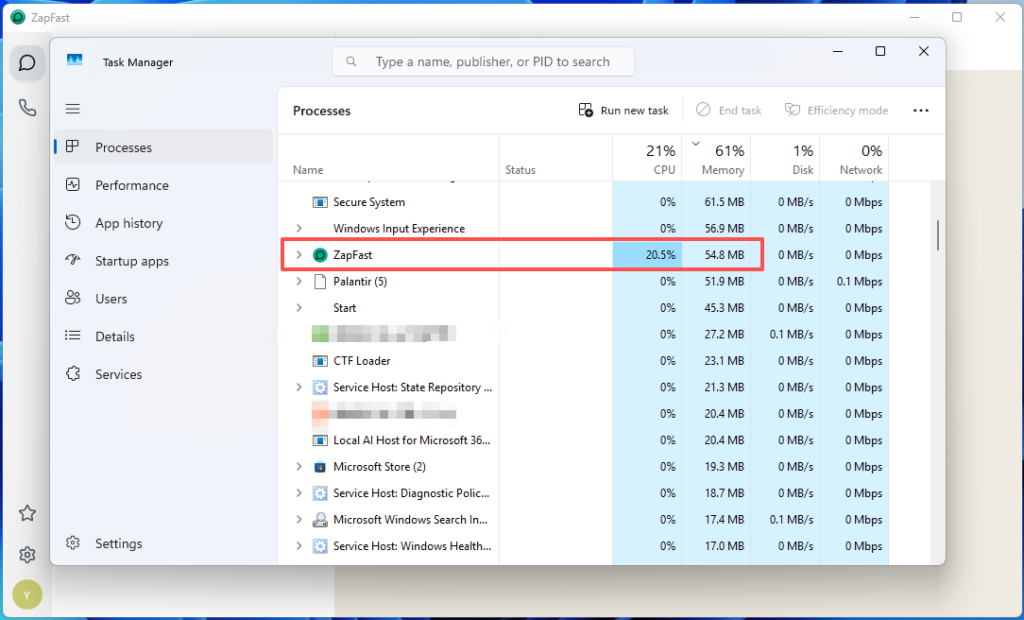
I connected my WhatsApp account to ZapFast and checked its memory consumption after the initial chat synchronization.
- RAM usage at idle: 50MB and higher
- RAM usage during active messaging: 150MB and higher
ZapFast vs WhatsApp Desktop:
| Pros | Cons |
| Uses significantly less RAM and fewer system resources than WhatsApp Desktop | Unofficial third-party WhatsApp client |
| Native Windows app built with Rust, without a browser engine | May carry a risk of WhatsApp account restrictions |
| Supports messaging, file sharing, stickers, and voice messages | Does not support Status or Communities |
| Supports one-to-one voice and video calls | Group calls are still experimental |
Beeper
Beeper is a multi-platform messaging application that brings conversations from different services into one interface. It supports WhatsApp, Telegram, Signal, Discord, and several other messaging networks. Instead of switching between separate apps, you can manage supported accounts from one desktop client.
How to Download and Use Beeper
- Visit the official Beeper website.
- Click Download for Windows to get the Windows desktop application.
- Install and open Beeper, then follow the account setup instructions.
- Open Settings > Accounts > Add an Account.
- Find WhatsApp and select Connect.
- Wait for the QR code to appear.
- On your phone, open WhatsApp and go to Settings > Linked Devices > Link a Device.
- Scan the QR code to connect your WhatsApp account. You can repeat the account-connection process to add other supported messaging services.
My RAM Usage Test
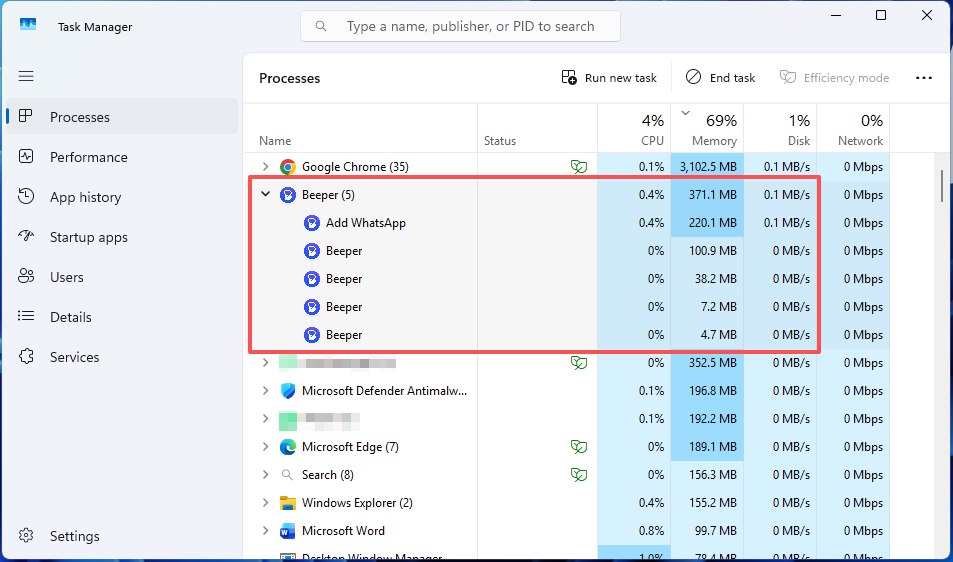
After connecting WhatsApp to Beeper, I checked its memory consumption in Task Manager.
- RAM usage at idle: 300MB and higher
- RAM usage during active messaging: 380MB and higher
Beeper vs WhatsApp Desktop
| Pros | Cons |
| Combines WhatsApp, Telegram, Signal, Messenger, and other messaging platforms in one app | RAM usage is roughly comparable to WhatsApp Desktop |
| Lets you manage multiple messaging accounts from a single inbox | Resource usage increases as you connect more messaging platforms |
| Supports cross-platform messaging and chat synchronization | Some WhatsApp features, such as Status updates and outgoing calls, are not supported |
| Available on Windows, macOS, Linux, Android, and iOS | Can feel resource-heavy if you only need it for WhatsApp |
WhatsApp Web
WhatsApp Web is the official browser-based way to access your WhatsApp conversations without installing the standalone Windows desktop application. It offers messaging, media sharing, and supported calling features. Since it uses your browser, its resource consumption will depend partly on the browser, open tabs, extensions, and active conversations.
How to Use WhatsApp Web on Windows 11
- Open Microsoft Edge or Google Chrome.
- Visit https://web.whatsapp.com/.
- Open WhatsApp on your phone.
- Go to Settings > Linked Devices > Link a Device.
- Scan the QR code displayed in your browser and wait for your chats to synchronize.
My RAM Usage Test
I opened WhatsApp Web in my browser and checked its memory consumption in Task Manager.
- Browser and WhatsApp-related RAM usage at idle: 30MB and larger
- Browser and WhatsApp-related RAM usage during active messaging: 50MB and larger
WhatsApp Web vs WhatsApp Desktop
| Pros | Cons |
| Uses significantly less RAM and system resources than WhatsApp Desktop (30 MB in my test) | Requires a web browser to run |
| No separate desktop installation required | Browser tabs and extensions can still consume system resources |
| Supports messaging, file sharing, voice and video calls (availability may vary) | Some desktop-specific integrations may differ |
Which WhatsApp Alternative Should You Choose
After testing all four options on the same Windows 11 PC, I found that each one has a different advantage.
- Telegram Desktop: The best balance of smooth performance, low RAM usage, and everyday messaging features.
- ZapFast: The lowest RAM usage, but installation and setup are more complicated.
- Beeper: The most powerful for managing multiple messaging platforms, but its resource usage is relatively high.
- WhatsApp Web: The lowest RAM usage in my tests, but less flexible for regular desktop use.
Quick Comparison: WhatsApp Alternatives
| App | RAM Usage (Idle / Active) | Best For | Main Drawback |
| Telegram | 250+ / 300+ MB | Smooth, lightweight everyday messaging | Requires switching platforms |
| ZapFast | 50+ / 150+ MB | Using WhatsApp with minimal RAM | Complicated installation |
| Beeper | 300+ / 380+ MB | Managing multiple messaging apps | Relatively high resource usage |
| WhatsApp Web | 30+ / 50+ MB | Lowest RAM usage | Less flexible than a desktop app |
How to Reduce WhatsApp Memory Usage on Windows 11
If you prefer to keep using the official WhatsApp Desktop application, you can try the following adjustments to reduce unnecessary background activity. These steps may help, although they cannot guarantee that the app will use less RAM in every situation.
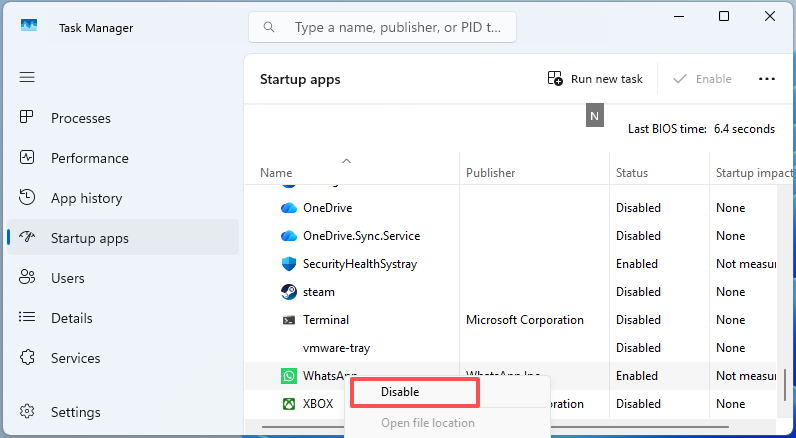
Fix 1. Disable WhatsApp from Starting Automatically
WhatsApp may launch whenever you sign in to Windows, even when you don’t need it.
- Press Ctrl + Shift + Esc to open Task Manager.
- Select Startup apps from the left sidebar.
- Find WhatsApp in the list.
- Right-click it and select Disable.
- Restart your PC to apply the change.
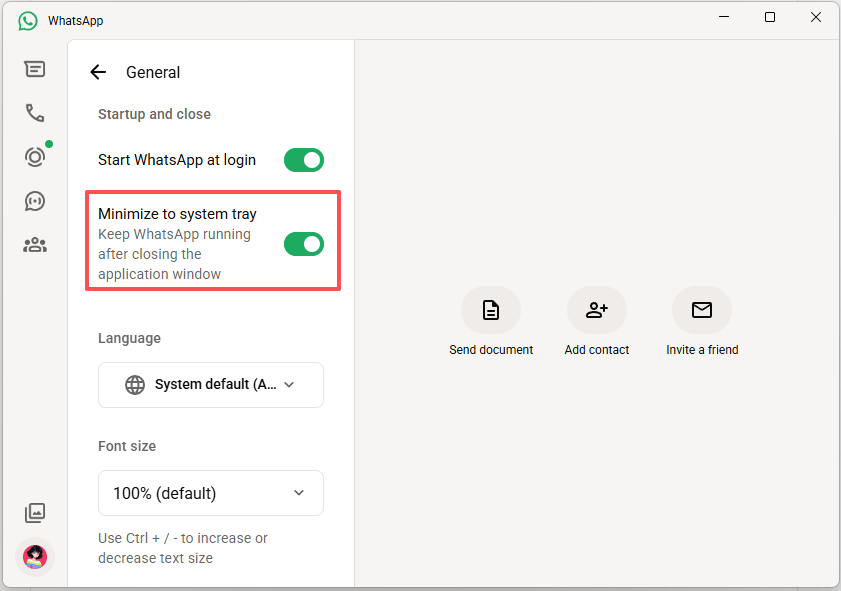
Fix 2. Stop WhatsApp from Running in the System Tray
Closing the WhatsApp window may not completely exit the application if it is configured to remain active in the system tray.
- Open WhatsApp Desktop.
- Click the Settings icon at the bottom-left corner.
- Select General.
- Look for the Minimize to tray or similarly named setting.
- Turn it off if you want closing the window to exit the application instead of leaving it running in the background.
- Close WhatsApp and check Task Manager to see whether its processes have stopped.
Fix 3. Close Unnecessary Browser Tabs and Background Apps
If you use WhatsApp Web, other browser tabs and extensions can contribute to overall memory consumption. This is particularly useful if you keep many browser tabs open while working.
- Open your browser’s Task Manager. In Chrome or Edge, press Shift + Esc.
- Check which tabs and extensions are using the most memory.
- Close tabs you no longer need.
- Disable unnecessary extensions.
- Reopen WhatsApp Web and check its memory usage.
FAQs
Why does WhatsApp use 2GB of RAM on Windows 11?
One possible reason is its transition from a native UWP application to a WebView2-based desktop experience. The browser engine and its supporting processes can use additional memory. However, actual usage depends on the app version, chat activity, media, and PC configuration. Not every user will see 2GB of RAM usage.
Is WhatsApp Web lighter than WhatsApp Desktop?
It can be lighter in some situations, but the result depends on the browser, open tabs, extensions, and chat activity. Compare the total memory used by the browser processes associated with WhatsApp rather than looking at a single tab or process.
How much RAM should WhatsApp use on Windows 11?
There is no single official RAM requirement or fixed memory target for WhatsApp Desktop. Its memory usage changes with background activity, conversations, media, and calls. A consistent increase or unusually high usage that affects other applications is worth investigating.
Is ZapFast an official WhatsApp client for Windows 11?
No. ZapFast is an independent, open-source third-party client that connects to WhatsApp through its companion-device mechanism. It is not developed or endorsed by Meta. Its use may carry account and compatibility risks, so review its documentation and limitations before connecting your account.