Recently, Microsoft officially announced the first Windows 11 26H2 preview build on June 19, 2026 through the Windows Insider Program. Many Windows enthusiasts are eager to test Microsoft’s latest preview build.
If you’re also looking for a safe and reliable way to get started, you’ve come to the right place. Here at Your System Fixer, you’ll learn two simple methods to download the file, along with the easiest ways to create a bootable USB drive for installation.
TL;DR – Watch Quick Windows 11 26H2 ISO Download Video Guide
Overview of Windows 11 26H2
Microsoft officially introduced the first Windows 11 26H2 preview build to the Experimental Channel on June 19, 2026. The initial release, Windows 11 Pro Insider Preview Build 26300.8697, marks the beginning of the Windows 11 26H2 development cycle and gives Windows Insiders early access to upcoming improvements.
Unlike a full feature update, Windows 11 26H2 shares the same service branch as Windows 11 25H2. Microsoft plans to deliver new features through cumulative preview updates before the stable public release later this year.
How to Download Windows 11 26H2 ISO File
There are currently two practical ways to download the Windows 11 26H2 ISO. Let’s start trying.
Warning: Windows 11 26H2 is currently available only as an Experimental Preview. It is designed for testing and evaluation rather than everyday use. Because preview builds may contain bugs, performance issues, or unfinished features, we strongly recommend installing it only on a virtual machine or a secondary PC instead of your primary computer.
Method 1: Download 26H2 ISO from Microsoft Windows Insider Preview
The easiest and safest option is to download the ISO directly from Microsoft’s Windows Insider Preview download page. If you have already joined the Windows Insider Program, you can try this method first.
Step 1. Visit the Windows Insider Preview Download page
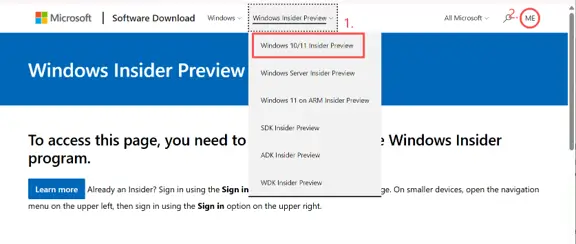
Open your browser and search for “Windows 11 26H2 download”. Select the official Microsoft download page, expand Windows Insider Preview list and click Windows 10/11 Insider Preview, and sign in with your Microsoft account.
Step 2. Select the Experimental Build
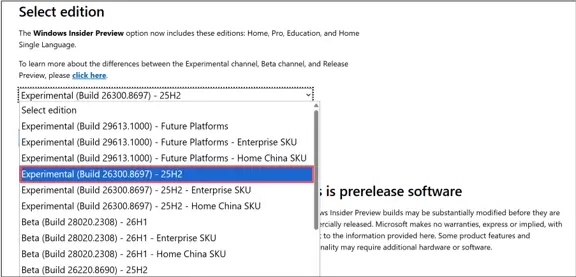
Scroll down to the Select edition section and open the drop-down menu. Then select the Experimental (Build 26300.8553) – 25H2 and click Confirm.
Tip: Don’t be confused if the page still references a 25H2-related preview branch. The 26300 series belong to the Windows 11 26H2 development branch. After installing this build, simply run Windows Update, and your PC will continue receiving the latest Windows 11 26H2 preview updates.
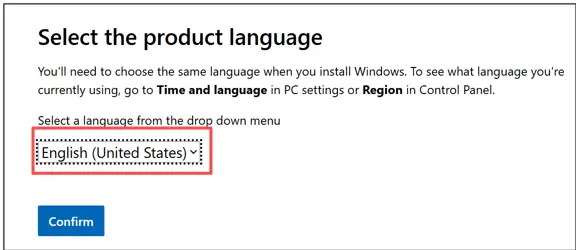
Step 3. Choose Your Language
Select your preferred product language and click Confirm.
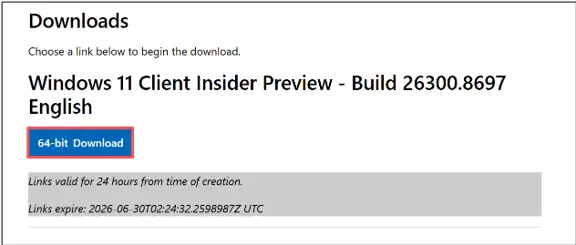
Step 4. Download the ISO File
Click the Download button to save the ISO. The official ISO is approximately 8 GB in size. Depending on your internet speed, the download may take around 20–30 minutes.
Method 2: Download Windows 11 26H2 ISO Using UUP Dump
If you want a specific Insider Preview build, such as Build 26300.8697, UUP Dump provides a more flexible solution.
Unlike unofficial Windows images, UUP Dump downloads update packages directly from Microsoft’s servers and generates a bootable ISO on your computer.
Step 1. Open the UUP Dump Website
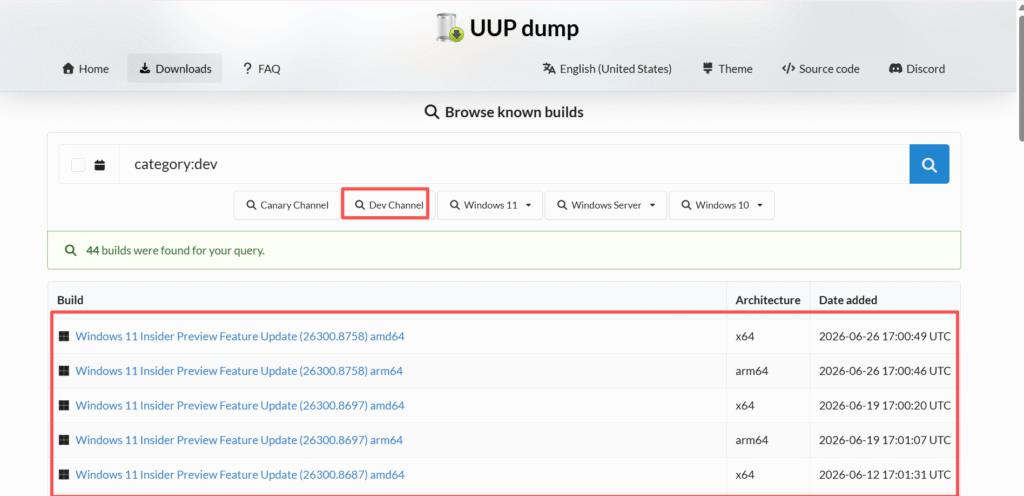
Visit the UUP Dump website and click Dev Channel tobrowse the available Windows 11 Insider Preview builds.
Step 2. Select the Correct Build
Choose the Windows 11 Insider Preview Build 26300.8697 or another edition you need, released on June 19.
If you’re using an Intel or AMD processor, select the x64 version. Choose ARM64 only if you’re using an ARM-based device such as a Copilot+ PC.
Step 3. Select Your Language and Edition
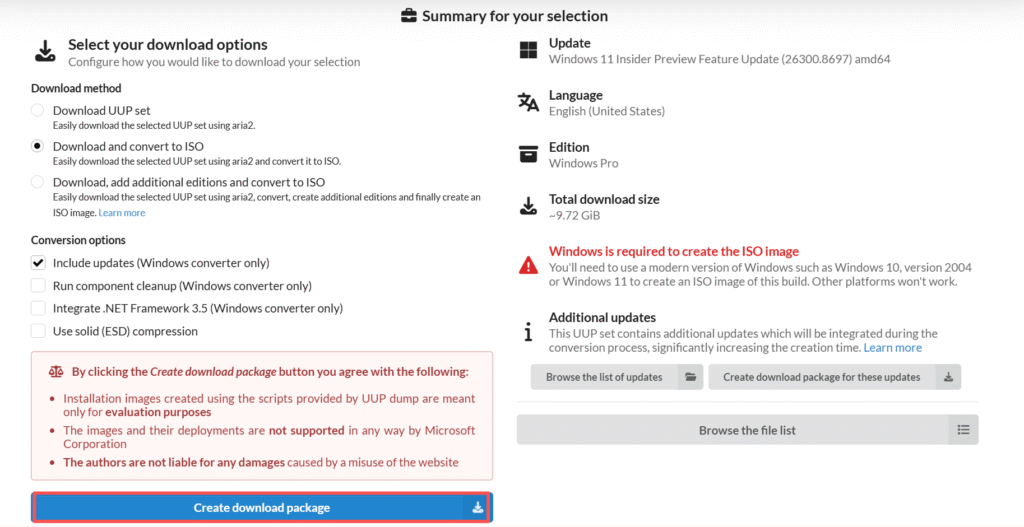
Choose your preferred language, then select the Windows edition you want to install. For most users, Windows 11 Pro is a good choice.
Step 4. Configure the Download Options
Keep the default option Download and convert to ISO, and enable Include updates (Windows converter only). The generated ISO is approximately 9.7 GB, so the download may take some time. Now, click Create download package.
Step 5. Generate the ISO
Download the package, extract the ZIP file, and open the extracted folder.
Right-click the included script or executable file “uup_download_windows” and select Run as administrator.
When the Command Prompt window appears, type R and press Enter to begin downloading the required files and creating the ISO.
Create a Windows 11 26H2 Bootable USB Using Rufus
After downloading the ISO, you can create a bootable USB drive using Rufus if you want to install Windows 11 on an unsupported PC.
Step 1. Download the latest version of Rufus from its official website and launch the application.
Step 2. Insert an empty USB flash drive and select it under the Device section.
Note: This process will erase all data on the USB. So, make sure you back them up beforehand.
Step 3. Click the Select button and choose the Windows 11 26H2 ISO file you downloaded earlier.
Step 4. Keep Standard Windows 11 Installation as the Image option.
Step 5. Set Partition scheme to GPT and Target system to UEFI (non-CSM).
Step 6. (Optional) Rename the USB drive, such as Windows 11 26H2, then leave the remaining settings at their default values.
Step 7. Click Start > OK to begin creating the bootable USB.
After the process is complete, your Windows 11 26H2 bootable USB is ready to use.