Have you wanted to try Windows 11 26H2 but worried about installing a preview build on your main PC? Since it is still in testing, using a virtual machine is a safer way to explore it without affecting your current system.
In this guide from Your System Fixer, we’ll show you how to install Windows 11 26H2 preview on VMware Workstation, including downloading the Insider Preview ISO, creating the VM, and enabling TPM 2.0 and Secure Boot.
TL;DR – Watch the Windows 11 26H2 VMware Installation Video Guide
Why Install Windows 11 26H2 in a Virtual Machine
Installing Windows 11 26H2 directly on your main PC can be risky because preview builds may contain bugs, driver issues, or compatibility problems that affect your daily work. However, VMware creates an isolated environment where you can explore new Windows features while keeping your existing files and applications unchanged.
- Protect your main PC: Windows 11 26H2 is still a preview version, so installing it in VMware reduces the risk of system crashes, driver problems, or software compatibility issues.
- No need for a bootable USB drive: You can install Windows 11 26H2 directly from an ISO file without changing your current Windows installation.
- Keep your files and apps unchanged: The virtual machine runs separately from your main system, so your personal data and installed programs remain safe.
- Easily remove or restore the test system: If you encounter problems, you can delete the virtual machine or restore a previous snapshot.
- Test new features before upgrading: You can experience Windows 11 26H2 improvements before deciding whether to install it on your everyday computer.
What You Need to Install Windows 11 26H2 on VMware
Before installing Windows 11 26H2 on VMware Workstation, you need to prepare the ISO file, virtualization software, and enough hardware resources. Since Windows 11 requires additional security features, you also need to configure TPM 2.0 and Secure Boot support in the virtual machine.
Make sure you have:
- Windows 11 26H2 Insider Preview ISO: Download the latest preview ISO from Microsoft through the Windows Insider Program.
- VMware Workstation: Install VMware Workstation on your computer to create and run the Windows 11 virtual machine.
- Microsoft account: A Microsoft account is required to access Windows Insider Preview downloads.
- Enough hardware resources: 4GB RAM minimum for the virtual machine, Multiple CPU cores, and enough free storage space for the virtual disk
- TPM 2.0 and Secure Boot support: Windows 11 requires TPM 2.0 and Secure Boot. VMware Workstation allows you to add virtual TPM support through VM settings.
How to Install Windows 11 26H2 on VMware Workstation
The installation process includes three main steps. First, download the Windows 11 26H2 Insider Preview ISO. Next, create and configure a Windows 11 virtual machine in VMware Workstation. Finally, install Windows 11 26H2 and complete the initial setup.
Part 1. Download Windows 11 26H2 Insider Preview ISO
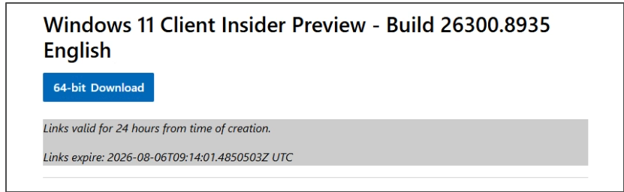
The latest Windows 11 26H2 Insider Preview ISO build may change over time because Microsoft regularly releases new preview versions. Depending on when you download it, the available build number may be different.
Follow these steps:
- Open your browser and search for “Windows 11 26H2 download”.
- Select the official Microsoft download page, expand the Windows Insider Preview list, click Windows 10/11 Insider Preview, and sign in with your Microsoft account.
- After signing up, you will be redirected to the Windows Insider Preview download page.
- Scroll down and open the version dropdown menu. Select the available Windows 11 Insider Preview build provided by Microsoft.
- Confirm your product language and click the download button to save the ISO file.
Part 2. Create a Virtual Machine of Windows 11
After downloading the ISO file, you can create a Windows 11 virtual machine using VMware Workstation. You need to configure the basic hardware settings and enable Windows 11 security requirements before starting the installation.
- Launch VMware Workstation and click Create a New Virtual Machine.
- Select Typical (recommended) and click Next.
- Choose I will install the operating system later, then click Next.
- Select Microsoft Windows as the guest operating system and choose the correct Windows version.
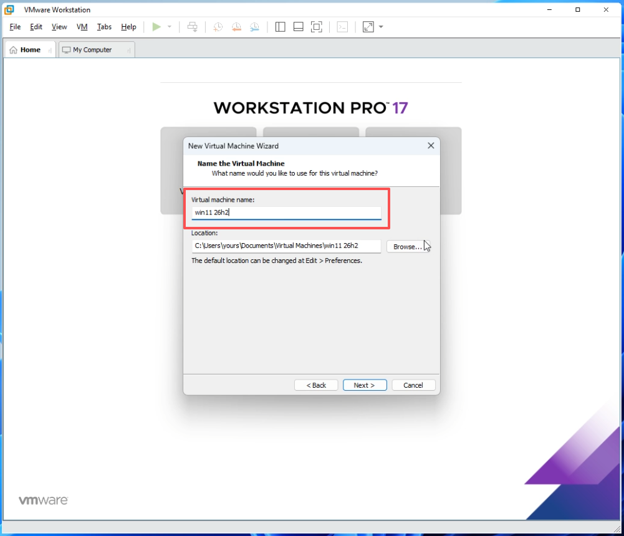
- Enter a name for your virtual machine, such as Win 11 26H2, and choose a location to store the VM files.
- Configure the virtual hard disk size based on your needs. You can keep the default settings and click Next.
- Click Finish to create the virtual machine.
- Click Edit virtual machine settings and go to the Hardware section to adjust the virtual machine settings.
- Select Memory and assign at least 4GB RAM. If your PC has enough resources, 8GB RAM is recommended.
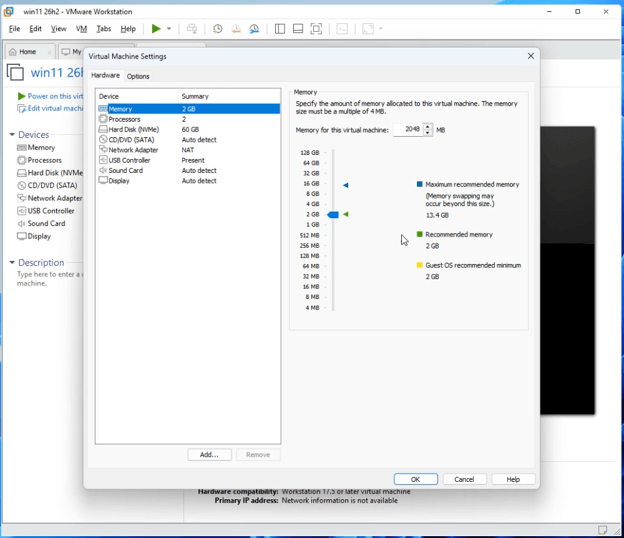
- Select Processors and assign available CPU cores based on your hardware.
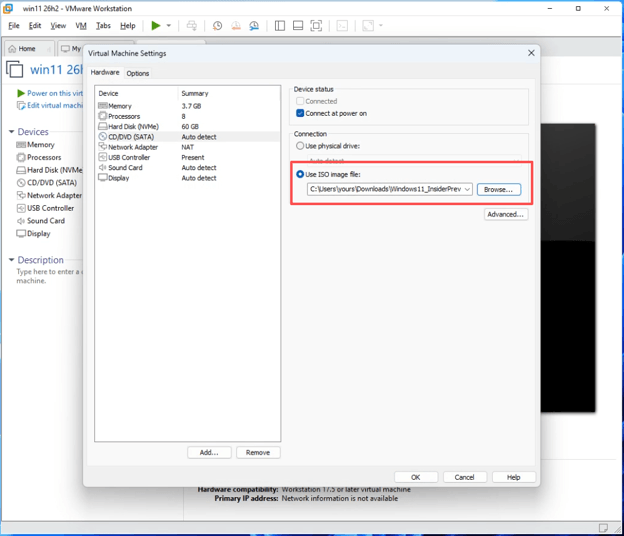
- Open the CD/DVD section, select Use ISO image file, and choose the Windows 11 Insider Preview ISO you downloaded.
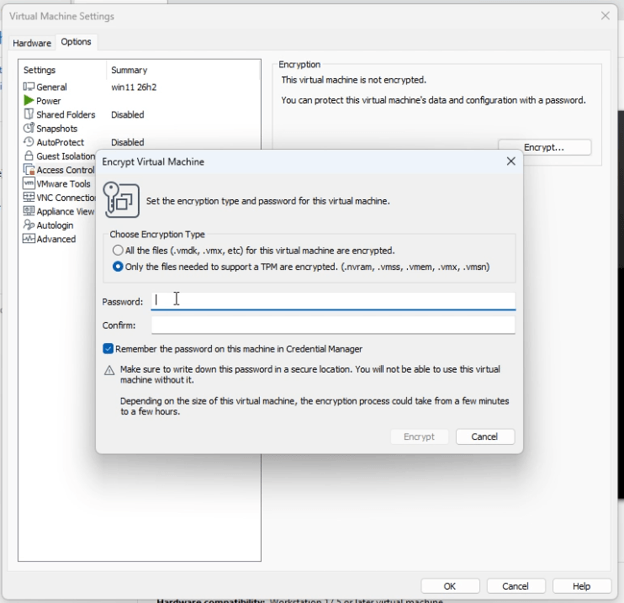
- Go to Options > Access Control and click Encrypt.
- Set the encryption type and password as shown on the screen, then confirm the encryption process.
- Return to the Hardware section and click Add.
- Select Trusted Platform Module and click Finish to add TPM 2.0 support.
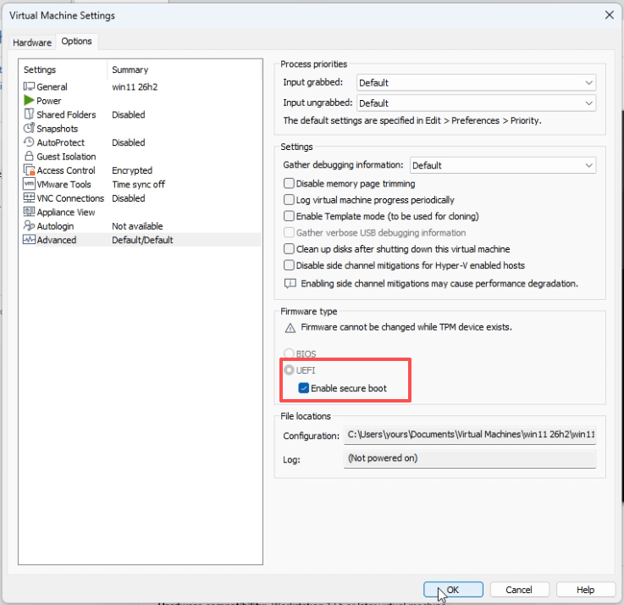
- Open Options > Advanced.
- Make sure the firmware type is set to UEFI and enable Secure Boot.
- Once all settings are complete, click OK.
Part 3. Install Windows 11 26H2 on VM
Now that the virtual machine is configured, you can start installing Windows 11 26H2. The installation process is similar to installing Windows on a physical computer, but everything happens inside VMware.
- Click Power on to start the installation.
- Press any key when prompted to boot from the CD/DVD drive.
- When the VMware boot menu appears, select the default boot option and press Enter.
- In Windows Setup, choose your language, time format, and keyboard layout.
- Select Install Windows 11, tick the box of I agree everything will be deleted, including files, apps, and settings, then hit Next.
- Select I don’t have a product key and continue.
- Choose the Windows edition you want to install, such as Windows 11 Pro.
- Accept the license terms.
- Select the unallocated space on the virtual hard drive and click Next.
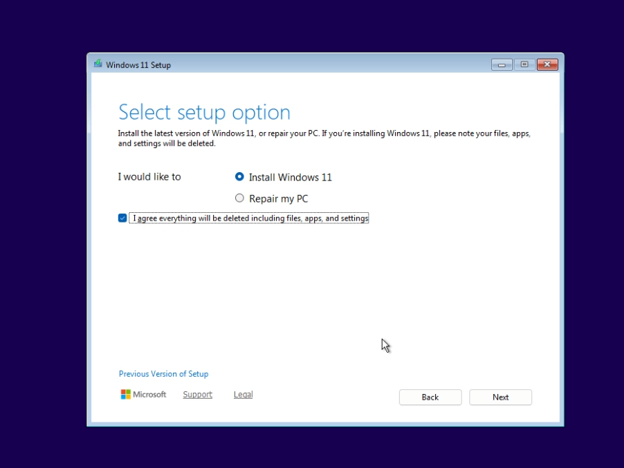
- Windows Setup will begin copying files and installing Windows 11 26H2.
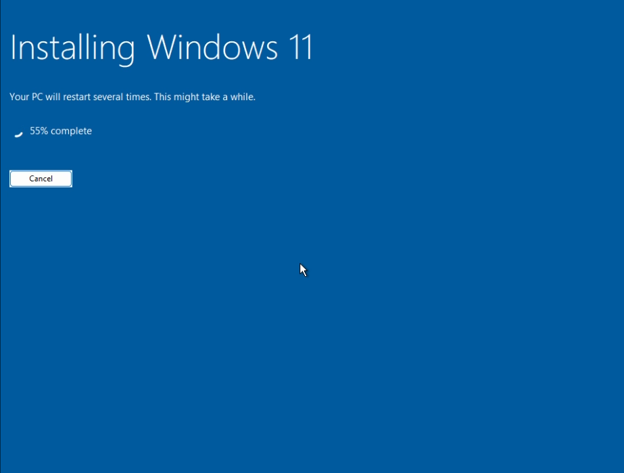
- After installation finishes, the virtual machine will restart automatically.
- Complete the initial Windows setup, including region settings, Microsoft account sign-in, PIN creation, and privacy preferences.
- After reaching the Windows desktop, open Settings > Windows Update and check for the latest Insider Preview updates.
FAQs
Does VMware Workstation support Windows 11 26H2?
Yes. VMware Workstation supports Windows 11 26H2 installation. You only need to configure the required virtual hardware settings, including TPM 2.0, UEFI, and Secure Boot.
Do I need TPM 2.0 and Secure Boot to install Windows 11 26H2 on VMware?
Yes. Windows 11 requires TPM 2.0 and Secure Boot. VMware Workstation allows you to add a virtual TPM module and enable Secure Boot through VM settings.
When will Windows 11 26H2 be officially released?
Windows 11 26H2 is expected to reach general availability between late September and October 2026. Microsoft will likely roll out the update gradually, so availability may vary depending on your device, region, and update channel.