Windows 11 26H2 is currently in an early experimental stage, which means it has not yet been officially released to the public. However, Microsoft has already made preview builds available through the Windows Insider Program, allowing users to experience upcoming features ahead of time.
If you want to try the latest Windows 11 26H2 preview, there are two reliable methods. In this guide from Your System Fixer, we will walk you through both the official Windows Update method and the clean install method, so you can choose the approach that best fits your needs.
TL;DR – Watch Quick Windows 11 26H2 Install Video Guide
What to Know Before Installing the Windows 11 26H2 Preview
Windows 11 26H2 is currently an Insider Preview release distributed through Microsoft’s experimental development channels. It is not a final public version, and it mainly targets testing new features and system improvements before official rollout.
So, it’s important to understand the Windows 11 26H2 version before installing:
- Windows 11 26H2 is an Insider Preview build, not a stable release.
- It is recommended to use a secondary PC or virtual machine.
- Always create a full system backup before installation.
- Your device must run Windows 11 latest version (supported build) for the upgrade.
- Stable internet connection is required for downloading updates.
- Some features may be hidden or disabled by default.
According to Microsoft’s Windows Insider documentation, Windows 11 26H2 is delivered through the experimental channel using a servicing-based update model, meaning it behaves like a feature update rather than a full OS reinstall.
How to Install Windows 11 26H2 Early Preview
There are two main ways to install Windows 11 26H2 early preview. The first method is easier and safer for most users, while the second method is better for users who want a clean installation of Windows 11.
Method 1. Upgrade to Windows 11 26H2 via Windows Update (In-Place)
This method allows you to upgrade directly through Windows Update without losing your files or reinstalling the system. But it requires enrolling your device into the Windows Insider Program Dev Channel, which provides access to early experimental builds like Windows 11 26H2.
Prerequisites:
- Your PC is running Windows 10 or Windows 11
- You have a Microsoft account
- Your system can access Windows Update normally
- You are willing to join the Windows Insider Program
Step 1. Open the Settings app by pressing Win + I keys, select Windows Update from the left panel.
Step 2. Click Windows Insider Program from the right panel and click Get started.
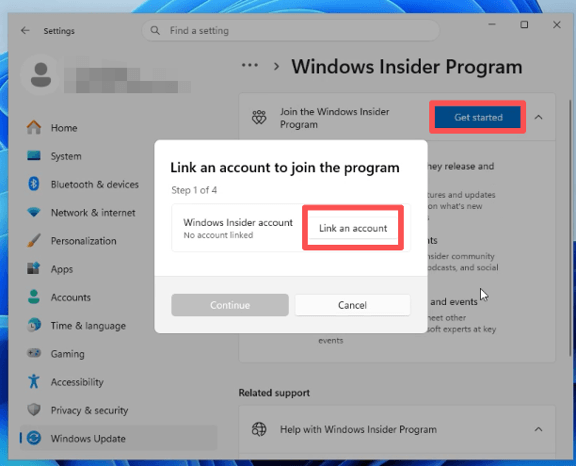
Step 3. When prompted, click Link an account, and follow the on-screen instructions to sign in with your Microsoft account to enroll your device.
Step 4. Once signed in, Select Dev Channel (Experimental builds) and click Continue.
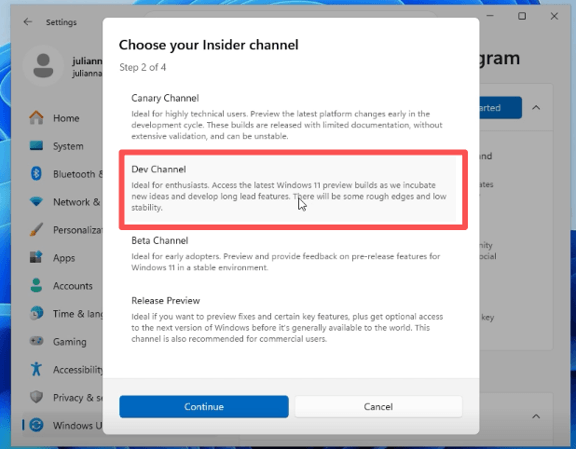
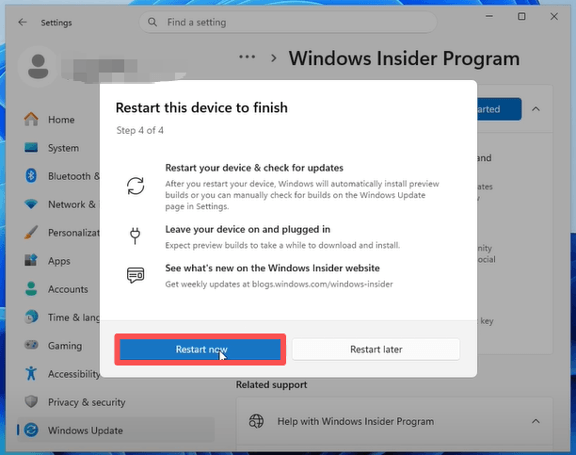
Step 5. Click Continue again to confirm enrollment, then restart your PC.
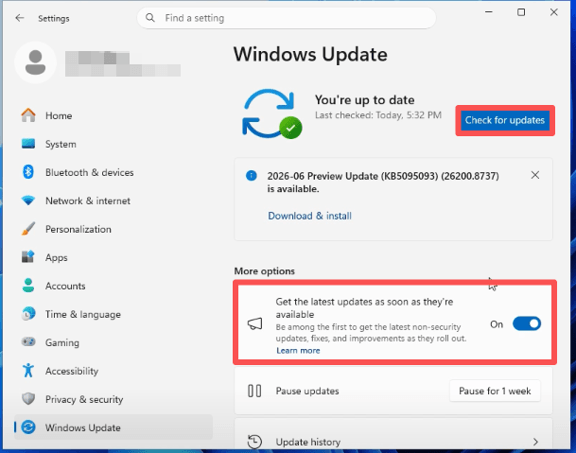
Step 6. After rebooting, go back to Settings > Windows Update. Then toggle off the switch next to “Get the latest updates as soon as they’re available”.
Step 7. Click Check for updates. Here, you may first see a build such as 26200.8737. Simply click Download & install and continue installing all available updates.
Step 9. Keep checking for updates and repeating the same process until you see the Windows 11 26H2 preview build (for example, Build 26300.8697). Once it appears, click Download & Install to begin upgrading to the 26H2 preview.
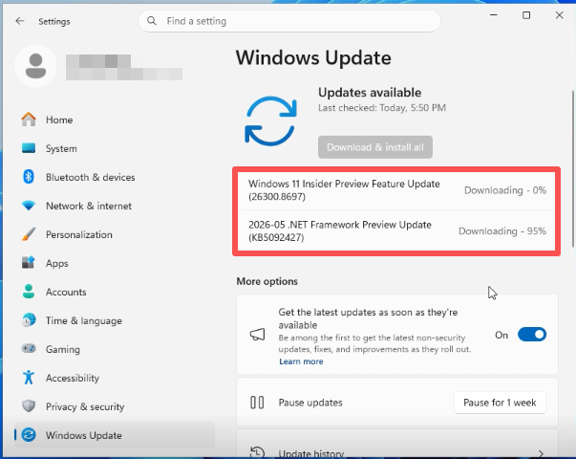
Step 10. Wait for the installation process to complete. Your PC may restart multiple times. After installation, go to Settings > System > About to confirm Windows 11 26H2 is installed.
Method 2. Clean Install Windows 11 26H2 Using a Bootable USB
This method is mainly used by advanced users who want a fresh installation or better system performance. It will erase your system data if you perform a clean install. Make sure you back up all important files before proceeding.
Prerequisites:
- An empty USB drive
- Windows 11 26H2 ISO file (via UUP dump method or Insider ISO)
- Rufus tool for creating bootable USB
- Backup of all important data
Part 1. Download Windows 11 26H2 ISO Using UUP Dump
- Visit the official UUP Dump website and navigate to the Dev Channel section to browse available Windows 11 Insider Preview builds.
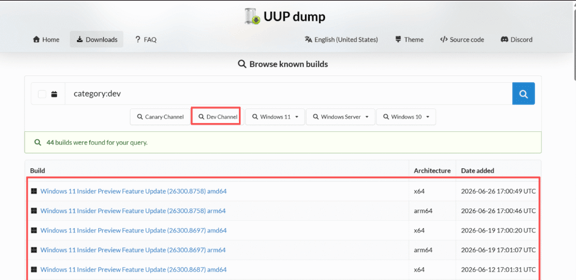
2. Choose the Windows 11 Insider Preview Build 26300.8697 or another edition you need.
3. Choose your preferred language, then select the Windows edition like Windows 11 Pro.
4. Keep the default settings. Select Download and convert to ISO and Enable Include updates (Windows Converter only).
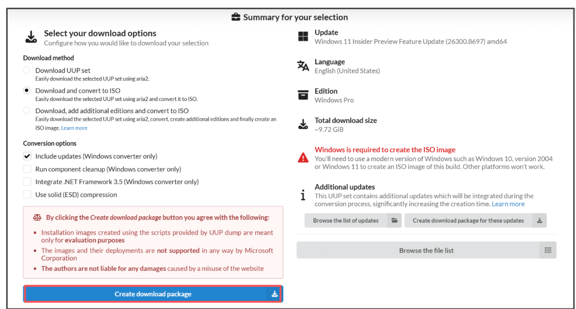
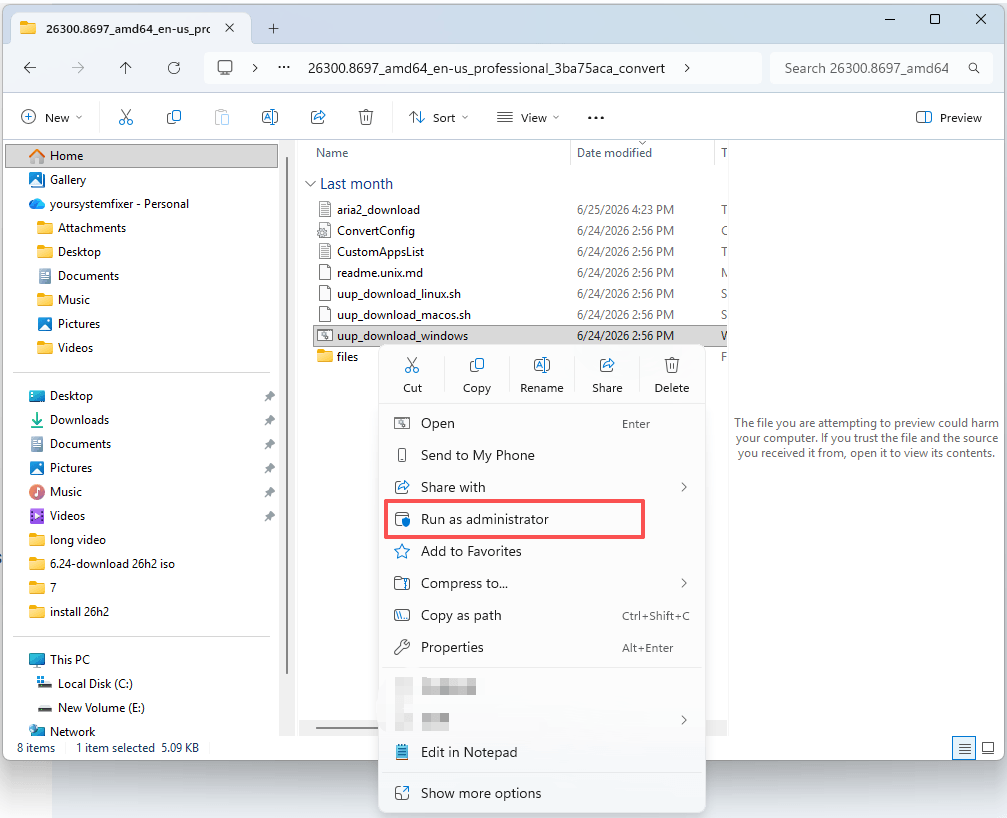
5. Once downloaded, extract the ZIP package. Find and right click the uup_download_windows file and Select Run as administrator > Run.
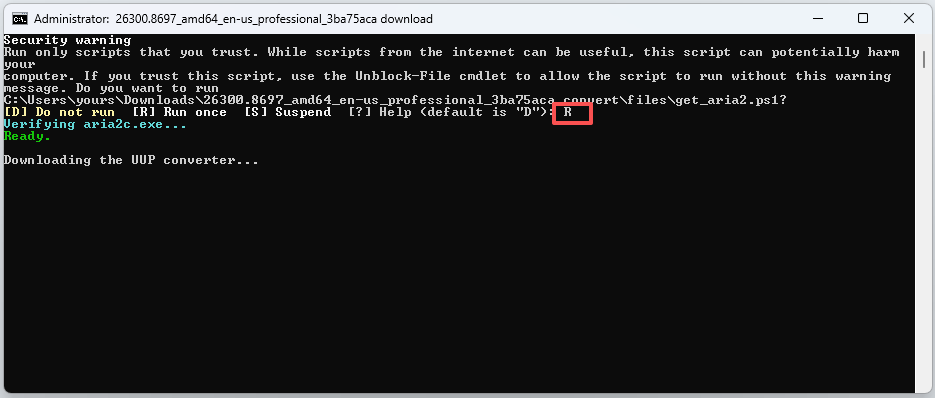
6. Press the R key to run the script and then press Enter.
7. Press the 0 key when prompted to close the screen.
Part 2. Create Windows 11 26H2 Bootable USB Using Rufus
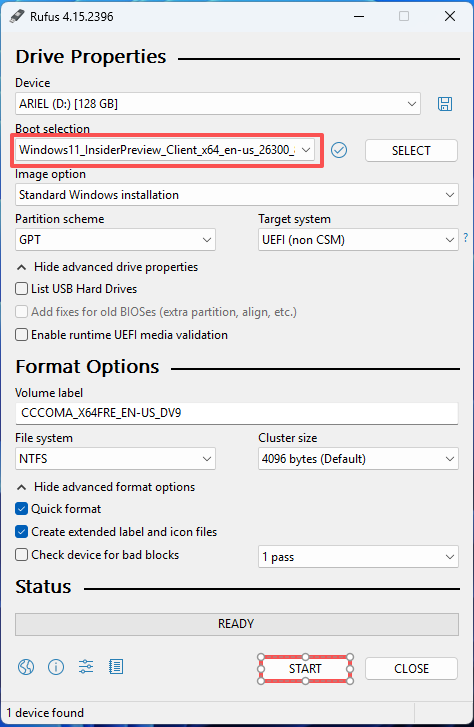
- Download the latest version of Rufus from the official website and launch the application. This tool can help you bypass system requirements and install Windows 11 on an unsupported PC.
- Insert an empty USB flash drive. Then the tool will automatically detect the USB on your PC.
- Click Select and choose the Windows 11 26H2 ISO file you created earlier.
- Keep Standard Windows 11 Installation as the Image option.
- Set the Partition scheme to GPT and Target system to UEFI (non-CSM).
- (Optional) Rename the USB drive, such as Windows 11 26H2, then leave the remaining settings at their default values.
- Click Start > OK to begin creating the bootable USB.
Part 3. Install Windows 11 26H2 from Bootable USB
- Insert the bootable USB drive into the target computer and power it on.
- Immediately press the boot key, such as the Delete or F2 keys, repeatedly during startup.
- Set the USB drive as the first boot order in your BIOS utility. Then your machine will boot from the 26h2 installation media.
- When the Windows Setup screen appears, click Install Now to begin the installation process.
- Select Language settings and Setup Options.
- Choose the keyboard and input method.
- Select the “Install Windows 11” option. Here you need to tick the box “I agree everything will be deleted including files, apps, and settings”, and click Next.
- Enter your Windows 11 product key here. If you don’t have one, click I don’t have a product key to continue.
- Choose the correct edition (Windows 11 Home or Pro). Make sure it matches your license if you plan to activate later.
- Accept the License Terms and choose the drive where Windows will be installed.
- Click Install, and Windows will begin copying files and installing the system.
- After installation, Windows will restart and launch the Out-of-Box Experience (OOBE). Just follow the on-screen prompts to complete the setup.
FAQs
Will installing the Windows 11 26H2 preview delete my personal files?
If you use the Windows Update method (in-place upgrade), your files will not be deleted. However, a clean install using USB will erase all data unless you choose to keep files during setup.
Does Windows 11 26H2 have higher hardware requirements than previous versions?
No. Windows 11 26H2 maintains the same hardware requirements as previous Windows 11 versions. It does not introduce higher system requirements.
Will I receive future updates after installing Windows 11 26H2?
Yes. If your device is enrolled in the Windows Insider Dev Channel, you will continue receiving future preview builds and updates automatically.
When will Windows 11 26H2 be available to everyone?
There is no official public release date yet. Windows 11 26H2 is still in development and is only available through the Windows Insider Program at this stage.
Will support for version 25H2 end immediately once I upgrade to 26H2?
No. Windows updates typically follow a staged service model. Support does not end immediately, and both versions may coexist during the transition period depending on Microsoft’s rollout plan.