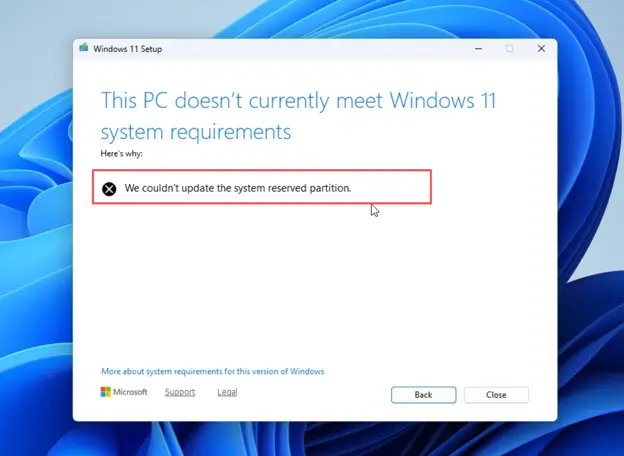
Many users received the “We couldn’t update the system reserved partition” error when upgrading to Windows 11 26h2 via the ISO file. The problem is related to insufficient available space on the EFI System Partition (ESP).
How to free up this partition and install Windows 11 successfully? Don’t worry! In this blog post, Your System Fixer provides a tested solution that doesn’t require a third-party partition manager. Let’s take a look.
TL;DR – Watch the Quick Fix Video Guide
What Does “We Couldn’t Update the System Reserved Partition” Mean
The “We couldn’t update the system reserved partition” error usually means Windows Setup cannot update the partition that stores essential boot files during a Windows upgrade.
The System Reserved Partition is a small partition created by Windows during installation. It stores important system and boot files required for starting Windows. On modern computers using GPT and UEFI, it is generally handled by the EFI System Partition (ESP).
During the Windows 11 26h2 upgrade, Windows Feature Updates need to access the EFI Partition for updating Windows Boot Manager and other boot-related components. If there isn’t enough available space, Windows Setup may be unable to complete these changes, resulting in the system reserved partition error.
How to Fix “We Couldn’t Update the System Reserved Partition” on Windows 11
Before making changes, it is important to understand that the EFI System Partition is required for Windows to boot. The method below temporarily mounts the EFI partition so you can access its contents and remove unnecessary boot font files to free up space. It does not require resizing the partition or installing a third-party partition manager.
Step 1. Check Available Space on the System Reserved Partition
First, you can check how much disk space is available on the EFI system partition.
- Right-click the Start button and select Disk Management.
- Locate the EFI System Partition on your Windows system disk.
- Check its size and available space. It normally has no drive letter and cannot be opened directly in File Explorer.
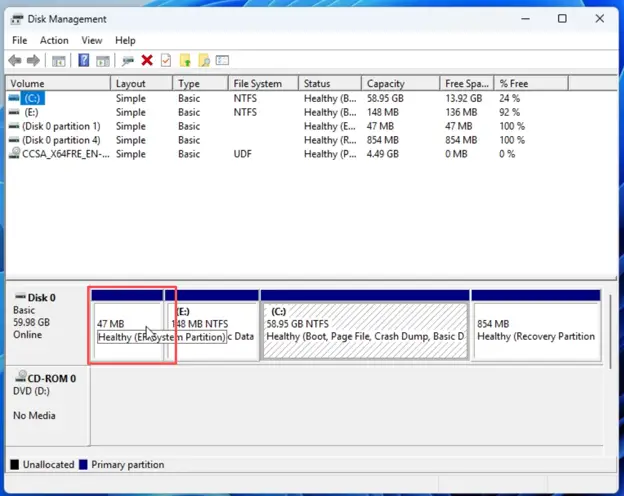
If the partition has very little available space, freeing up some space may allow Windows 11 26H2 to complete the upgrade.
Step 2. Free Up the System Reserved Partition Safely
We can use the built-in Mountvol command to temporarily access the EFI System Partition. This method assigns a temporary drive letter to the EFI partition, allowing you to navigate to its boot font directory and remove unnecessary font files.
Note: Do not randomly delete files from the EFI System Partition. Only remove the files specified by the method and make sure you are working inside the correct EFI\Microsoft\Boot\Fonts directory.
- Search for Command Prompt in Windows Search, right-click it, select Run as administrator, and click Yes.
- In the command prompt window, run the following command to mount the EFI System Partition.
mountvol Y: /S
3. Type the command and hit Enter to assign it the temporary drive letter.
Y:
4. Next, navigate to the Windows boot fonts folder by running the command below:
cd EFI\Microsoft\Boot\Fonts
5. Type the command below and hit Enter to view the boot font files stored on the EFI partition.
dir
6. Now, run the “delete” command shown on screen and confirm the operation when prompted. This will
del *.*
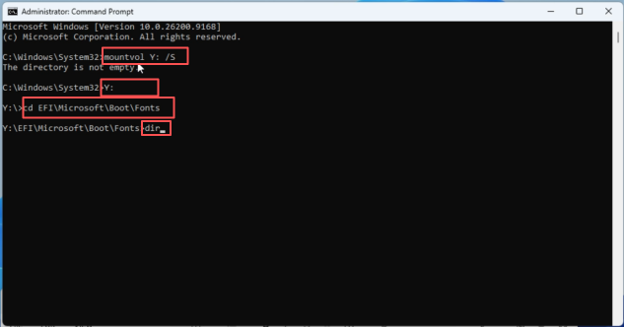
After the command completes successfully, the files will be removed and the available space on the EFI System Partition should increase. Then you can run the Windows 11 26H2 Setup again and continue with the upgrade. The installation should now be able to update the required boot files and proceed normally.
FAQs
How much space does the EFI System Reserved Partition need for Windows 11 26H2?
For Windows 11 26H2, the EFI System Partition (ESP) should ideally be 260–500 MB, with at least 100–200 MB of free space available for Windows boot files and updates. For a smoother upgrade experience, 500 MB is recommended, especially if you frequently install major Windows feature updates.
Can I delete files from the EFI System Reserved Partition?
Yes, but only specific unnecessary files can be removed. Never randomly delete or modify EFI boot files because doing so can prevent Windows from booting.
What happens if I delete the system reserved partition?
Deleting the EFI/System Reserved Partition can remove essential Windows boot files and make the operating system unbootable. Never delete it unless you know exactly what you are doing.
What should I do if Windows 11 still can’t update the System Reserved Partition?
If the error remains, check the EFI partition’s available space and consider expanding the partition with a reliable partition-management tool. Also, back up important data before modifying system partitions.