If you need to reinstall Windows 11, upgrade hardware, or check activation status, you will likely need your 25-character Windows 11 product key. While Microsoft ties the licenses to your digital account, having the actual physical key on hand is always a safe backup.
In this guide, Your System Fixer shows the quickest way to find your Windows 11 product key and explains some common issues users often encounter.
TL;DR – Watch the Quick Video Tutorial
How to Find Your Windows 11 Product Key using Command Prompt
Windows stores the original product key in the system firmware on many devices. You can retrieve it with a simple command. The command queries the motherboard’s BIOS or UEFI firmware directly to extract the original product key that came with your machine.
Tip: This CMD method only retrieves OEM product keys embedded in your device firmware. It may not work for digital licenses, volume licenses, or some retail activations.
Step 1. Press Windows + S, type cmd, right-click Command Prompt, and select Run as administrator. Then click Yes.
Step 2. In the elevated Command Prompt window, copy and paste the following command, then hit Enter.
wmic path softwarelicensingservice get OA3xOriginalProductKey
wmic path softwarelicensingservice get OA3xOriginalProductKey
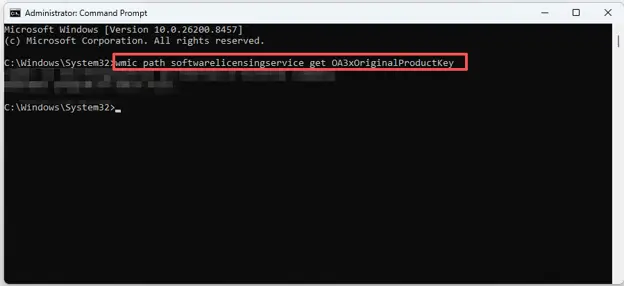
Step 3. If a product key is available in your system firmware, Windows will display a 25-character key for troubleshooting purposes.
Common Cases and Results of the Windows 11 Product Key Command
After running the command, you may see different results depending on how Windows was licensed and activated on your device.
The command does not always display your currently active Windows license. Instead, it attempts to retrieve the original OEM product key stored in your computer’s firmware (BIOS/UEFI).
Below are the most common results and what each one means.
Case 1. A 25-Character Product Key Is Displayed
Example:
OA3xOriginalProductKey
XXXXX-XXXXX-XXXXX-XXXXX-XXXXX
In most cases, the displayed key is the OEM product key that came with the computer when it was manufactured. It is stored in the motherboard firmware and can often be used to reinstall the same Windows edition on that device.
What does it mean:
- Your PC contains an embedded Windows product key.
- The key was detected successfully.
- Windows Setup can usually read this key automatically during reinstallation.
Case 2. The Command Returns a Blank Result
Many users also encounter the “blank space area” issue after running the Windows 11 product key command. A blank result does not necessarily mean Windows is not activated. It only means the command could not find an embedded OEM key.
What does it mean:
- No OEM key is stored in the firmware.
- Your PC may use a digital license linked to a Microsoft account.
- Windows may have been activated using a retail license.
- The system may use a volume license provided by an organization.
Case 3. “wmic Is Not Recognized as an Internal or External Command” Error
Example:
‘wmic’ is not recognized as an internal or external command,
operable program or batch file.
What does it mean:
- The WMIC utility is missing or disabled.
- Microsoft has gradually deprecated WMIC in recent Windows versions.
- The command cannot run because the required tool is unavailable.
To fix the “wmic Is Not Recognized as an Internal or External Command” error, you can try installing the WMIC optional feature if available. Here’s a quick guide for you:
Step 1. Press the Win + I keys to open the Settings window.
Step 2. Select System from the left panel, scroll down the right-side bar, and click Optional features.
Step 3. Click View features next to View or edit operational features.
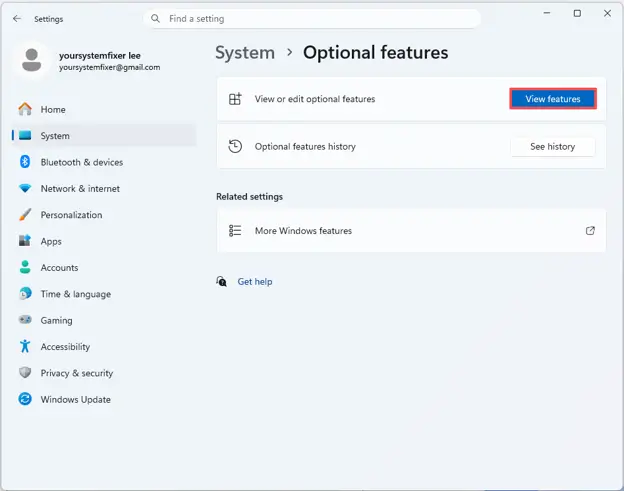
Step 4. Search for WMIC. If available, tick the box next to it and press Next.
Step 5. Click the Add button to begin the installation process. After that, you can run the command again and see if the Windows 11 product key displays.
If it still doesn’t work, you can try using PowerShell-based alternatives or running Windows activation commands such as:
(Get-CimInstance -ClassName SoftwareLicensingService).OA3xOriginalProductKey
Case 4. “No Instance(s) Available” Issue
Example:
No Instance(s) Available.
This result indicates that Windows cannot find the required licensing information for your Windows 11 system. It is similar to a blank output and usually points to the absence of an embedded OEM product key.
What does it mean:
- No OEM key exists in firmware.
- Licensing information may be unavailable or inaccessible.
- The system may be using a different activation method.
Case 5. The Displayed Key Does Not Match Your Current License
Some users are surprised when the command shows a key that differs from the one currently used to activate Windows. This happens because the command only reads the OEM key stored in firmware. It does not always display the active license currently registered with Microsoft.
For example:
- The PC originally shipped with Windows Home.
- The user later upgraded to Windows Pro using a retail key.
- The command still displays the original Home OEM key.
In this situation, the output is normal and does not indicate a licensing problem.
Case 6. The Command Works but Windows Is Still Not Activated
Finding a product key does not automatically mean Windows is activated. Sometimes, the embedded key may:
- Belong to a different Windows edition.
- Have already been replaced by another license.
- Not match the currently installed version of Windows.
To verify this situation, you can navigate to Settings > System > Activation and there you can see whether Windows is activated and what activation method is being used.
| Result | Meaning |
| 25-character key displayed | Embedded OEM key found successfully |
| Blank output | No OEM key stored or digital license in use |
| “wmic is not recognized” error | WMIC tool unavailable on the system |
| “No Instance(s) Available” error | Licensing information not found |
| Key differs from current license | OEM key differs from active activation key |
| Key shown but Windows not activated | Product key and activation status are separate |
OEM vs. Retail vs. Digital License: What’s the Difference
Many users assume all Windows licenses work the same way, but that’s not the case. Whether you own an OEM key, a Retail key, or a Digital License can affect activation, hardware upgrades, and Windows reinstallation.
OEM License
An OEM (Original Equipment Manufacturer) license comes preinstalled on a new laptop or desktop. The product key is typically embedded in the motherboard firmware (BIOS/UEFI), which is why the CMD command in this guide can often retrieve it.
OEM licenses are generally tied to the original device and are not intended to be transferred to another computer. The above command is used to find the Windows 11 OEM product key.
Retail License
A Retail license is purchased separately from the PC.
Unlike OEM licenses, Retail keys are usually transferable. If you replace your computer, you can often reactivate Windows on the new hardware after removing the license from the old device.
This makes Retail licenses a popular choice for enthusiasts who frequently upgrade their systems.
Digital License
A Digital License (formerly called Digital Entitlement) works differently. Instead of relying on a visible 25-character product key, activation is linked to your Microsoft account and Microsoft’s activation servers.
Because of this, the CMD command in this article may return a blank result even though Windows is fully activated.
OEM vs. Retail vs. Digital License Comparison
| Feature | OEM Key | Retail License | Digital License |
| Comes with a new PC | Yes | No | Sometimes |
| Has a 25-character key | Usually | Yes | Not always |
| Stored in BIOS/UEFI | Usually | No | No |
| Transferable to another PC | Generally, No | Usually Yes | Depending on license source |
| Can be found with this CMD command | Often Yes | Usually No | Usually No |
| Linked to Microsoft Account | Optional | Optional | Yes |
| Best for | Prebuilt PCs | Custom-built PCs and upgrades | Modern Windows installations |
In Conclusion
Windows 11 product key results vary by OEM, Retail, or digital license type and system setup. At Your System Fixer, we share simple and practical Windows fixes to help users solve everyday PC problems quickly.