Microsoft OneDrive is deeply integrated into Windows 11 and automatically backs up important folders such as Desktop, Documents, and Pictures. However, many users often encounter issues like the C drive full due to these backed-up files.
If you also want to store files locally or use alternative backup solutions, turning off OneDrive is a good choice. This post will walk you through the entire process. We’ve also included a quick video tutorial from Your System Fixer to help you follow along visually.
TL;DR – Watch Quick Video Guide
Why Turn Off OneDrive Backup in Windows 11
Instead of forcing users to choose what they want to sync, Windows 11 OneDrive pushes your personal directories to the cloud by default. This automatic setup causes issues for users, such as low disk space and slow computers.
Here are the primary reasons for turning off OneDrive backup:
- Limited free OneDrive storage space
- Preference for local file storage
- Using a third-party cloud service
- Avoiding automatic file synchronization
- Improving file management and privacy
Step-by-Step: How to Turn Off OneDrive Backup in Windows 11
To safely disable the backup system, you must access the specific backup settings hidden inside the OneDrive application. Here are detailed steps:
Step 1: Open OneDrive Settings
- Click the OneDrive icon and select the Gear-shaped icon from the upper right corner.
- Choose Settings from the drop-down menu.
Step 2: Access Sync and Backup Settings
Inside the OneDrive Settings window:
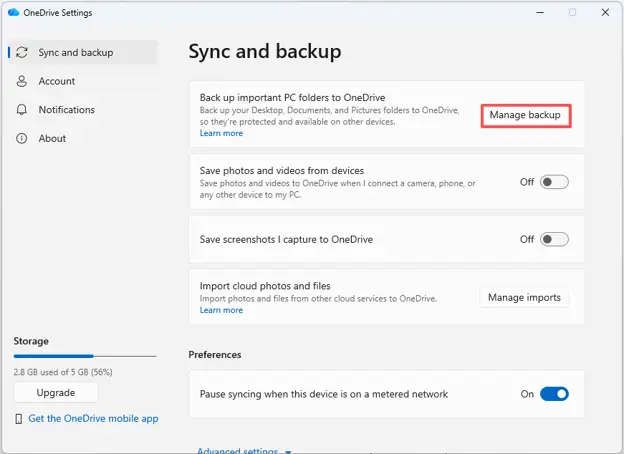
- Navigate to Sync and Backup in the left navigation panel.
- Click on Manage Backup to display the folders currently being backed up to OneDrive.
Step 3: Stop the Folder Backup
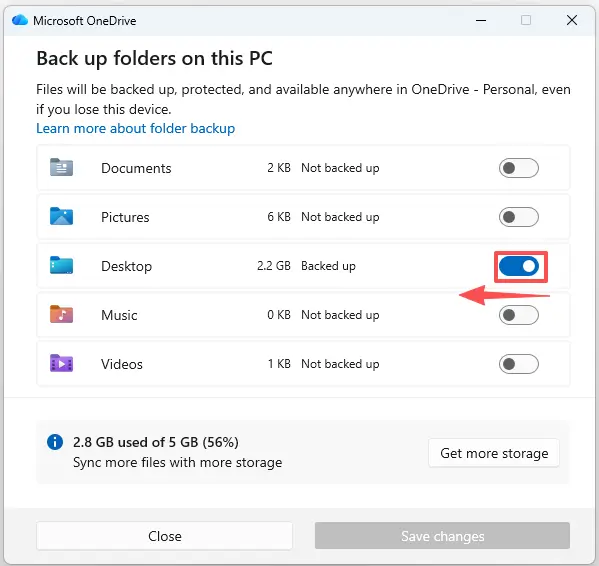
You will typically see the following folders when backing up folders on your local PC:
- Desktop
- Documents
- Pictures
- Music
- Video
- Toggle off the switch next to the folder you want to stop backing up from OneDrive.
- Confirm your choice when prompted. Then you can repeat the process for all folders if you want to completely disable OneDrive backup.
What Happens After Disabling OneDrive Backup
Many users panic when they turn off the backup feature because they notice their desktop icons or documents have suddenly vanished. Do not worry, as your files are completely safe and have not been deleted. When you stop backing up a folder:
- Files remain available on your computer.
- OneDrive stops syncing future changes.
- Local storage becomes the primary location.
- Cloud copies remain in your OneDrive account until manually removed.
To restore them to your local view, open your File Explorer, navigate to the OneDrive folder directory, open the respective folder, and manually drag or copy your files back to your local Desktop or Documents folder.
Bonus Tip: How to Completely Stop OneDrive from Running
If you want to further stop OneDrive from running completely, you can try:
1. Pause Syncing Temporarily
If you just need to save internet bandwidth or reduce CPU usage for a short time, click the OneDrive tray icon, click the Gear Icon, select Pause syncing or Quit OneDrive. This stops all background operations without changing your settings permanently.
2. Unlink Your PC
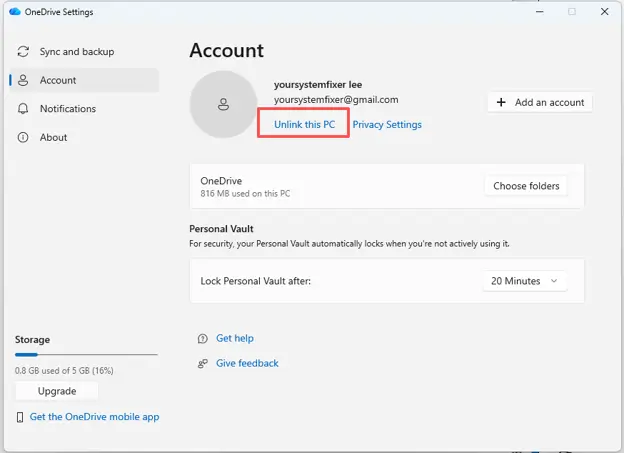
Go back to OneDrive Settings > Account tab, click Unlink this PC, and confirm. This means that your PC will stop syncing with your OneDrive account, but files already downloaded on the PC will remain.
3. Disable OneDrive from Startup
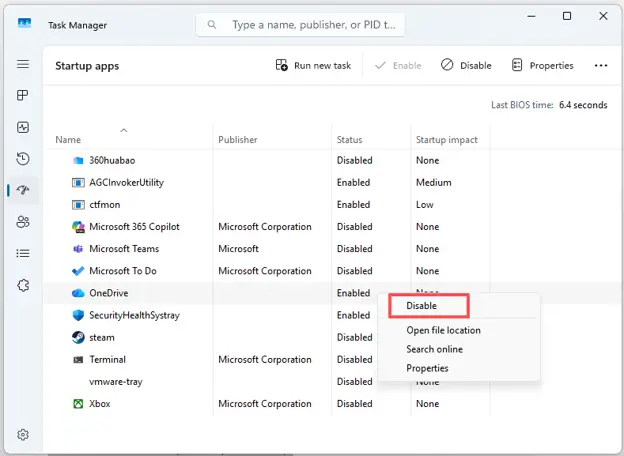
Open the Windows Task Manager (Ctrl + Shift + Esc), navigate to the Startup Apps tab, locate Microsoft OneDrive, right-click it, and select Disable so it never launches automatically when you boot up.
4. Uninstall OneDrive Completely
If you use alternative cloud storage or prefer a purely offline machine, you can remove the app entirely. Open Windows Settings (Win + I) > Apps > Installed apps, search for “Microsoft OneDrive”, click the three dots next to it, and select Uninstall. However, most users only need to disable folder backup rather than remove OneDrive entirely.
The End
OneDrive backup is a convenient feature, but it isn’t necessary for every Windows 11 user. Whether you’re running out of cloud storage or simply prefer local file management, turning off OneDrive backup is straightforward.
For more Windows troubleshooting guides, system optimization tips, and easy-to-follow tutorials, visit Your System Fixer and subscribe to our YouTube channel for regular tech content.