Point-in-time restore in Windows 11 is a powerful recovery feature that helps users roll back their system to a specific moment before issues occur, such as failed updates or software conflicts, helping improve system reliability and recovery speed. In this guide by Your System Fixer, we will walk you through how to enable or disable this feature step by step.
Takeaways
- Full‑System Rollback: Unlike traditional recovery tools, Point‑in‑time restore reverts the entire OS volume, including applications, local user files, and encryption keys.
- Hardware and OS Demands: The feature is on by default only for devices running specific Windows 11 25H2/24h2 builds or later with an OS drive of 200 GB or greater.
- Registry Tweaks Required: Many Windows 11 Pro users experience grayed-out UI settings, which require the Group Policy or Registry Editor to adjust retention limits.
- Page File Side Effects: Early adopters report a significant increase in pagefile.sys size after turning this feature on, as dynamic restore data impacts virtual memory.
- Data Loss Warning: Rolling back to a previous point wipes all local data created after that snapshot; only cloud-synchronized files like OneDrive remain untouched.
Overview of Windows 11 Point-in-time Restore
Point-in-time restore is a modern recovery feature designed to capture system states at specific moments so users can restore Windows 11 to an exact previous configuration when something goes wrong. It’s designed for more frequent and precise recovery snapshots, offering improved control over system recovery scenarios.
What Happens After You Enable This Feature?
- Windows automatically creates recovery checkpoints
- Storage space is reserved for restoring data
- System changes are tracked more frequently
- Recovery becomes faster and more precise
If you frequently install beta drivers, test system configurations, or work in development environments, you can try enabling this function. However, if you want to conserve disk space, or prefer third-party backup tools, or use a stable system, you can disable it.
Requirements Before Enabling Point-in-time Restore
Microsoft introduced Point-in-time restore support in the following Windows 11 builds. If your system does not meet these requirements, you must update Windows before enabling the feature.
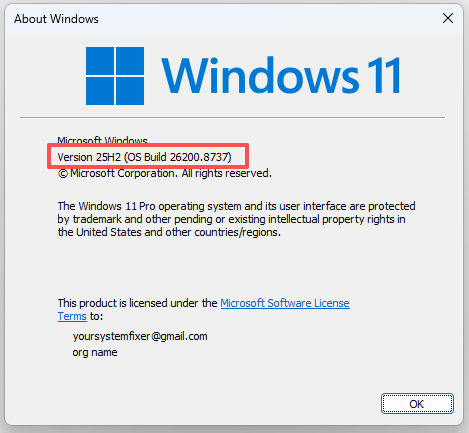
- Windows 11 build 26100.8737 (24H2)
- Windows 11 build 26200.8737 (25H2)
- Windows 11 build 28000.2340 (26H1)
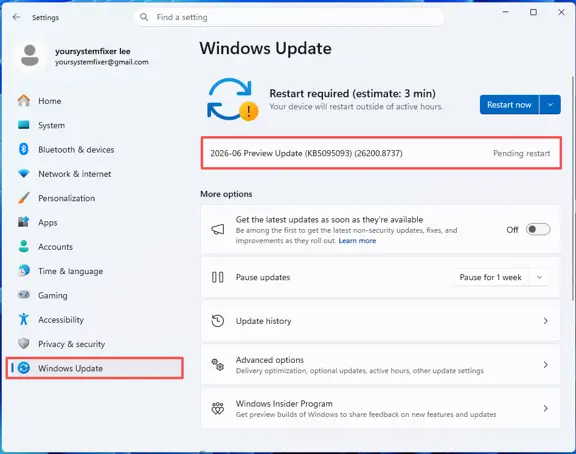
For example, if you are running an older Windows 11 25h2 version, you can update to the build 26200.8737 by following the steps below:
Step 1: Press the Windows Key + I shortcut on your keyboard to open the Settings menu.
Step 2: Navigate to the left sidebar menu and click on the Windows Update section.
Step 3: Click the Check for updates button located at the top right of the screen.
Step 4: If a cumulative update or preview build is listed, click Download & install and let the process complete.
Step 5: Click Restart now when prompted to allow the system to apply the new architecture.
How to Enable or Disable Point-in-time Restore in Windows 11
Once you update Windows 11 to the new build, you can follow the 2 simple methods to enable or disable the Point-in-time restore feature.
Method 1. Use Settings App (Standard Users)
This approach is best suited for standard users running Windows 11 Home or Pro who prefer a simple, menu-driven interface without dealing with system code.
Step 1: Open the Settings app again by pressing the Win + I keys.
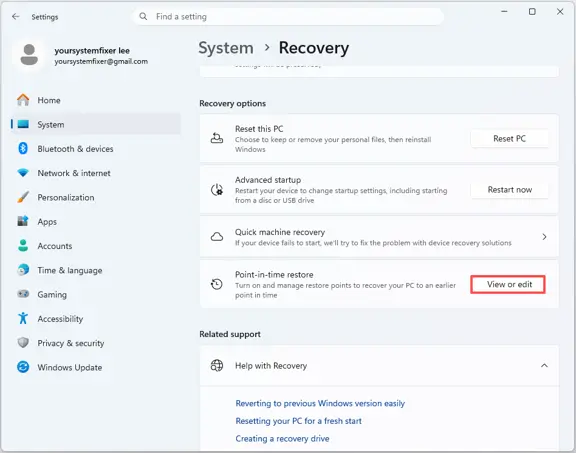
Step 2: Go to System, scroll down the right side of the window, and click on Recovery.
Step 3: Under Recovery options, click on the View or edit button right next to the Point-in-time restore entry.
Step 4: If prompted by User Account Control (UAC), click Yes to allow the application to make system changes.
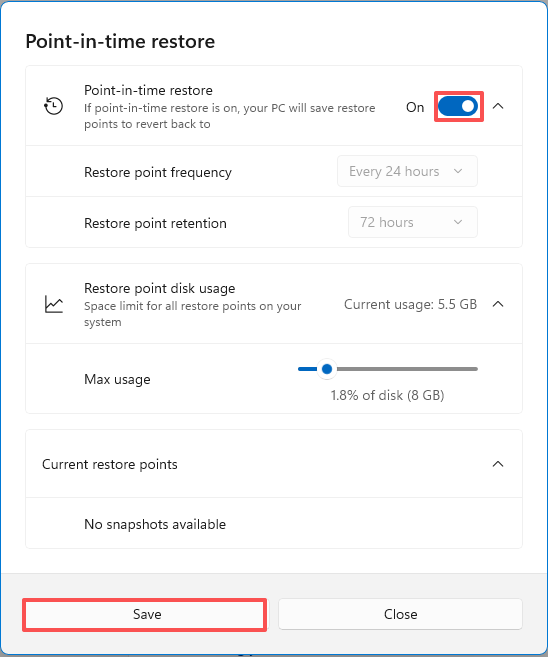
Step 5: Toggle on the switch next to Point-in-time restore to enable the feature.
Tip: If you want to turn off Point-in-time restore, toggle off the switch.
Step 6: Adjust the Maximum usage limit slider to allocate your preferred storage capacity for restoring snapshots. For most standard setups, allocating between 1% to 2% of your total OS drive capacity is recommended.
Step 7: If desired, change the Restore point retention and Restore point frequency options to your preferred intervals.
Step 8: Click Save > Close at the bottom of the window to activate the changes.
Method 2. Use Registry Editor (Advanced Users)
If you are an advanced power user or IT administrator who finds the standard settings menus grayed out or locked due to operating system bugs, this method is suitable for you.
Step 1: Press Win + R, type regedit into the Run dialog box, and press Enter > Yes to open the Registry Editor.
Step 2: Paste the following path into the address bar at the top and hit Enter.
HKEY_LOCAL_MACHINE\SOFTWARE\Microsoft\Windows\CurrentVersion\Setup\Recovery\PITR\Settings
Step 3: Locate the Active_UX DWORD value listed inside the right configuration window. Double-click it, change the current Value data field to 1, and click OK to enable this feature.
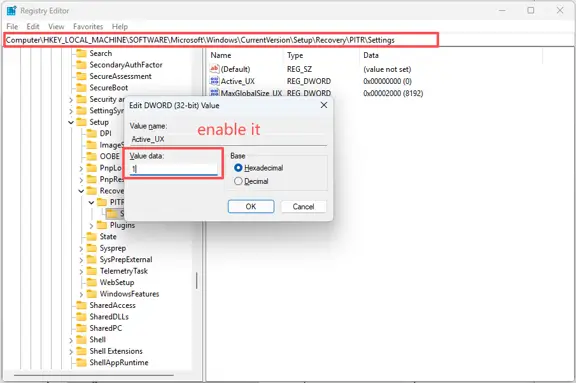
Step 4. If you want to disable the option, change the Value data field to 0 and click OK.
FAQs
Why Is Windows 11 Point-in-time restore Not Showing or Greyed Out?
The feature stays hidden if your OS drive volume is smaller than 200 GB. It can also appear grayed out due to bugs in preview builds like 25H2 or because your current Windows Update phase has not activated the controlled rollout yet.
Will Enabling Point-in-time restore Increase Disk or Page File Usage?
Yes. The system allocates a minimum of 0.8% of your disk space for snapshots. Some users report that dynamic recovery data cascades directly into pagefile.sys, causing virtual memory files to balloon from 2.5 GB up to 9 GB.
Should I Enable Point-in-time restore If I Already Use Backup Software?
No, it is generally redundant. If you run a reliable backup program, keeping this on wastes system resources. Third-party software handles total disk recovery more efficiently without affecting your Windows page file parameters.
Can I Change the Backup Frequency and Retention Period?
Not through the standard settings UI on Pro or Home editions, as those options are frequently grayed out. You must use administrative templates in the Group Policy Editor or edit specific registry keys to override default intervals.
Does Point-in-time restore delete my personal files when rolling back?
Yes. It performs a complete restoration of the entire OS volume. Any local documents, downloads, or software installations created after the restore point timestamp will be completely erased.