
A lot of users encounter the “The disk is write protected” error code when formatting or modifying a USB drive or SD card on Windows. In fact, this is a well-known issue that has been widely discussed in communities like Reddit.
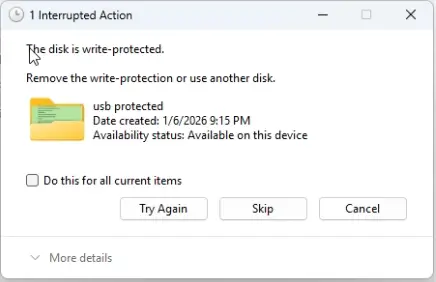
Don’t worry. This is a common Windows issue that prevents users from editing or writing data to storage devices. In this guide, Your System Fixer introduces 3 effective methods to remove write protection and restore full access to your USB/SD card.
TL;DR – Watch Quick Fix Video Guide
Don’t want to read through all the steps? If you want to bypass the text and see the fixes instantly, watch this quick 1-minute video breakdown to see the core solutions in action!
What Causes the “Disk Is Write Protected” Error
There are many possible reasons for the “USB/SD card disk is write protected” error on Windows 11. The most common ones are:
- Physical lock switch enabled on USB/SD card
- Corrupted file system or hardware failure
- Incorrect registry settings
- Disk marked as read-only
- Malware or system restrictions
How to Fix “The Disk Is Write Protected” Error on USB/SD Card
This is the most effective method and works in most cases. Let’s start trying.
Method 1: Remove Write Protection Using DiskPart (CMD)
You can remove the write protection using the built-in DiskPart tool in Windows Command Prompt. It’s a Windows command-line disk partition tool that can manage your disks, volumes, and partitions. Here’s how:
Step 1. Press Windows + R to open the Run box, type cmd, and press Ctrl + Shift + Enter keys simultaneously to run the tool as administrator.
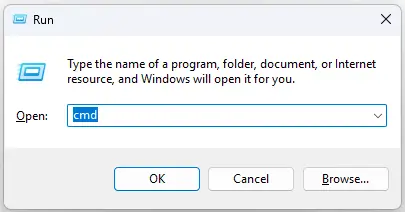
Step 2. In the Command Prompt window, type the following commands in order and hit Enter after each one.
- diskpart
- list disk
- select disk x (Replace X with the disk number of your USB/SD card)
- attributes disk clear readonly
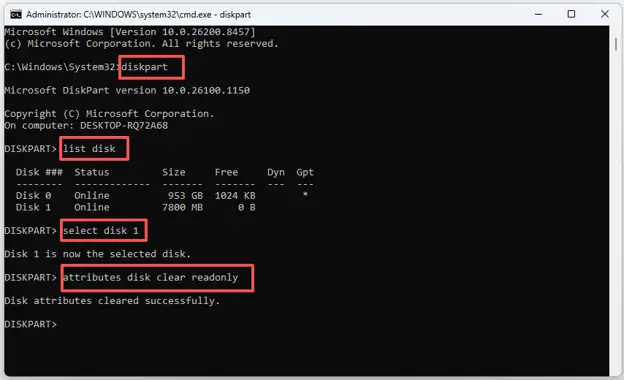
When you see the message “Disk attributes cleared successfully”, you can try accessing or formatting the USB/SD card again to see if the error code gets fixed.
Method 2: Fix Write Protection via Registry Editor
If DiskPart does not work, you can try fixing the issue by editing Windows Registry settings related to storage device write protection. For that:
Step 1. Open the Run box again, type regedit, and press Enter.
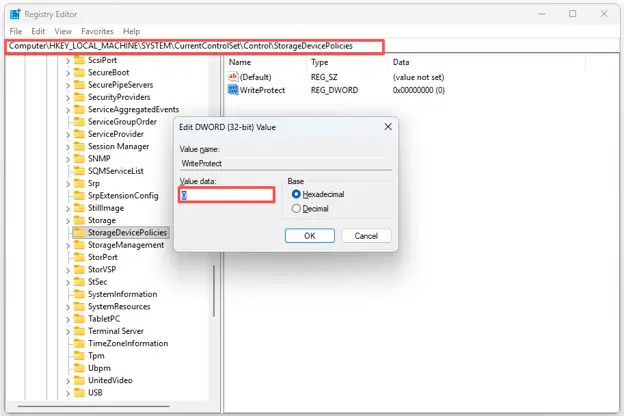
Step 2. In the Registry Editor window, navigate to the following path from the left panel:
HKEY_LOCAL_MACHINE\SYSTEM\CurrentControlSet\Control\StorageDevicePolicies
Step 3. Find the WriteProtect key from the right panel, double-click it, and set its value data to 0.
Tip: If the key does not exist, you can create it manually. Right-click the blank area, select New > DWORD (32-bit) Value, and name the key WriteProtect.
Step 4. Click OK to save the change and restart your computer. After that, you can check if the “SD/USB cannot format write protected” error is resolved.
Method 3: Check Physical Lock or Format the Drive
Some USB drives and SD cards come with a physical lock switch. So, you’d better check if there is an SD card adapter lock switch or a USB hardware protection switch enabled.
If it is enabled, gently slide or move it to the “Unlock” position. For SD cards, this is usually a small switch on the side of the adapter. Once unlocked, reinsert the card into your computer and try again.
Final Thoughts
The “Disk is write protected” error on Windows can be frustrating, especially when you urgently need access to your USB or SD card. However, in most cases, it can be fixed easily using DiskPart, Registry Editor, or by checking the physical lock switch. If this guide helps you, make sure to check out more Windows troubleshooting tutorials on Your System Fixer for more practical fixes and step-by-step guides.

Pingback: How to Install Windows 11 on Any PC? [Step-by-Step Guide]